
How to embed instagram feed on website: Simple steps
Putting an Instagram feed on your website isn't just a cosmetic update; it’s a smart way to link your social media life directly to your site visitors. Think of it as creating a live, constantly refreshing gallery that shows off your brand’s personality, provides real-world social proof, and keeps people hooked without them ever having to click away.
Why an Embedded Instagram Feed Is a Game Changer
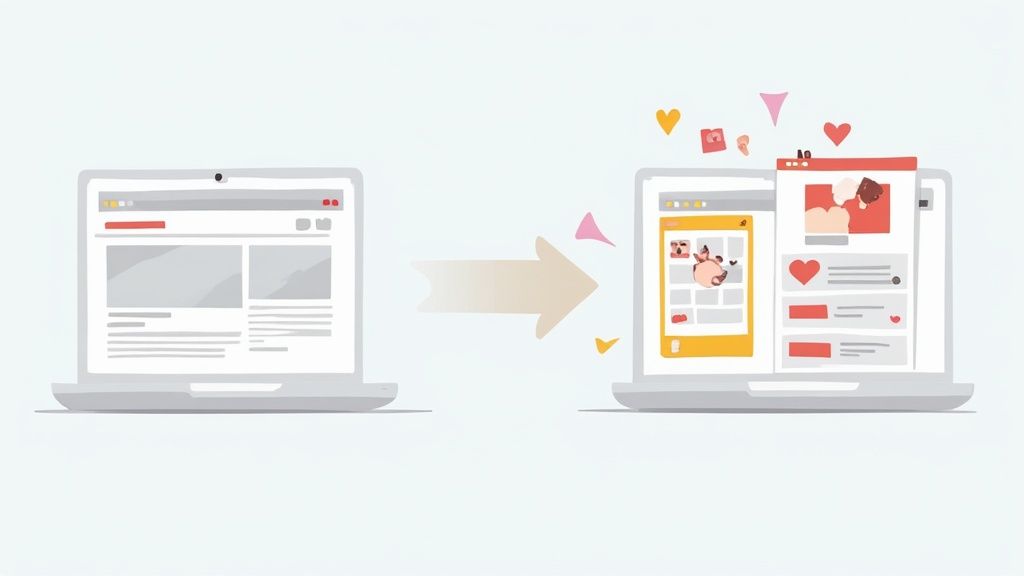
When you embed your live Instagram feed, you’re essentially transforming your website from a static brochure into a vibrant, dynamic space. This single move closes the gap between your website and your social community, giving visitors a much more complete and authentic picture of who you are.
This is where social proof really shines. When a potential customer lands on your site and sees real people - your team, happy clients, community members - engaging with your brand, it builds instant credibility. It’s like walking past a busy, bustling storefront versus an empty one; it immediately tells you that something good is happening here.
Boost Engagement and Build Trust
A live feed naturally keeps people on your site longer. Instead of just scanning text, they get to explore your latest posts, see what your community is up to, and get a true feel for your brand’s culture. This extra time spent on your site, often called "dwell time," is a great signal to search engines and helps forge a stronger bond with your audience.
Plus, you’re tapping into a massive, built-in audience. Businesses are embedding Instagram feeds on their websites to connect with a global user base that shot past 2.6 billion active users in early 2025.
Consider this: more than 62% of users say they use the platform specifically to find new brands. An embedded feed is your direct line to turn those curious browsers into loyal followers and customers. You can dive deeper into these kinds of Instagram statistics from recent studies to see just how powerful this trend is.
Key Takeaway: An embedded Instagram feed is your secret weapon for keeping website content fresh, building authentic social proof, and turning passive visitors into an engaged community.
Let's look at a quick overview of the main advantages.
Key Benefits of an Embedded Instagram Feed
Here’s a quick look at the main advantages of adding a live Instagram feed to your website, highlighting the direct impact on engagement, trust, and content strategy.
| Benefit | Impact on Your Website |
|---|---|
| Fresh Content Automatically | Your website always has new, relevant content without manual updates. |
| Increased Social Proof | Real-world photos and user posts build trust and authenticity instantly. |
| Higher Visitor Engagement | Interactive posts keep visitors on your site longer, reducing bounce rates. |
| Boosts Instagram Followers | A "Follow" button on your feed can directly grow your social media audience. |
| Improved Conversions | Shoppable feeds let customers buy directly from images they see on your site. |
This isn't just theory; it has a real impact on sales.
For example, if you run an e-commerce store, imagine a product page with a live feed showing customers wearing or using that exact item. That kind of visual proof is incredibly persuasive, answering potential questions and building the confidence someone needs to click "add to cart."
Getting Your Instagram Feed Set Up with Widgetly
Getting started with a new tool can sometimes feel like a chore, but we designed Widgetly to be as painless as possible. Let's walk through the first few steps together to get your Instagram account connected and your feed ready to go. Think of this as the foundation for building a beautiful, engaging addition to your site.
First things first, you'll need to create a Widgetly account. This is your starting line. The whole journey to embed your Instagram feed on your website kicks off with a quick signup that drops you right into a clean, easy-to-use dashboard. This is your mission control for everything you'll do from here on out.
Linking Your Instagram Account
Once you're logged in, the dashboard will guide you to connect your Instagram profile. This is a crucial step where you'll authorize Widgetly to access your posts. A heads-up: you'll need to use an Instagram Business or Creator account for this. Personal accounts don't have the API access needed for third-party tools like ours to work their magic.
This connection simply allows the tool to pull in your latest photos and videos automatically. Don't worry, the permissions are secure and standard - it only lets Widgetly display your content, not mess with your account. It's like giving us a read-only library card to your awesome feed.
After you've granted permission, you’re all set to build your first widget. Just look for the "Create New Feed" button - the dashboard makes it pretty hard to miss.
Pro Tip: Before you dive in, take a minute to just click around the dashboard. Get a feel for the customization panel, see where the help section is, and check out the main widget area. A little exploring now will make everything faster later.
Finding Your Way Around the Widgetly Dashboard
We built the dashboard to be super clear so you can find what you need without a headache. Here are the main spots you'll be using:
- My Feeds: This is your home base where every Instagram feed you create will be stored.
- Customization Panel: The fun part! This is where you'll find all the design tools to make the feed look just right.
- Support & Docs: If you ever get stuck or just have a question, this is your go-to resource.
With your account set up and Instagram connected, you've already knocked out the technical part. Seriously, that's it. Now you're ready to start designing a feed that looks like it was custom-built for your brand. The best place to start is by exploring all the features on the Widgetly platform.
Designing a Feed That Matches Your Brand
This is where the magic happens. A generic, slapped-on feed can look clunky and out of place, but a thoughtfully designed one feels like a natural, high-end extension of your site. Inside the Widgetly dashboard, you have all the tools you need to build an Instagram feed that truly mirrors your brand's unique style.
The goal isn't just to embed an Instagram feed on your website; it's to make it look like it belongs there. A minimalist portfolio site, for example, might need a clean, uniform grid. On the other hand, a bustling e-commerce homepage could really shine with a dynamic carousel cycling through new products and customer photos.
Choosing Your Core Layout
Your first big decision is the layout, as it sets the entire tone for your feed. Each option offers a different feel and serves a different purpose.
- Grid: The classic choice. A grid is clean, organized, and perfect for creating a visually consistent look. This works wonders for photography portfolios or brands with a strong, uniform aesthetic.
- Carousel: Ideal for saving space and adding an interactive touch. A carousel lets you show off multiple posts in a compact area, making it a great fit for homepages where you want to add social proof without eating up too much screen real estate.
- Masonry: This is a more dynamic, modern layout where posts of different sizes fit together like a puzzle. It’s perfect for feeds that mix landscape photos, portraits, and videos, creating a visually interesting and less rigid look.
After you've picked a layout, you can decide exactly how many posts to show. A simple 3x3 grid is a popular starting point, but feel free to adjust the number of rows and columns to fit any section of your site perfectly. This flexibility ensures your feed never looks too crowded or too sparse.
Fine-Tuning Your Visuals
Once the basic structure is in place, it’s time to dial in the details. This is where you can really align the feed with your brand’s specific visual identity. Widgetly lets you plug in the exact hex codes from your brand style guide, ensuring the colors for backgrounds, buttons, and text are a perfect match.
You also get granular control over what information appears with each post. You can toggle captions on or off for a cleaner look or even customize the hover effects to reveal post details when someone interacts with an image. Want to pull in only posts from a specific marketing campaign? Just set up a filter for a certain hashtag. These small adjustments make a huge difference in creating a polished, cohesive experience for your visitors.
And if you need help keeping your source content looking fresh, check out our guide on generating professional images.
This level of control is more important than ever. Embedding Instagram feeds directly on your website is a powerful way to boost engagement, especially as Instagram's algorithm continues to change. In fact, by 2025, Instagram’s overall engagement rate had already declined by 28% year-over-year. As organic reach gets harder to come by, your website gives you a reliable place to display your best content, free from the constraints of the algorithm. You can dig deeper into these social media benchmarks from Social Insider.
Placing the Instagram Feed on Your Website
Alright, you've designed a great-looking Instagram feed. Now for the fun part: getting it live on your site. The best part is you don't need to be a developer to make this happen. Widgetly hands you a single snippet of code that you just copy and paste.
This is a huge step up from embedding posts one by one directly from Instagram. Instead of a single, static post, you get a dynamic gallery that keeps itself updated automatically.
Where to Paste Your Widgetly Code
The exact spot you'll paste this code depends on what platform you use for your website, but the core idea is always the same. You're just pointing to the spot on the page where you want your new feed to show up.
Here’s a quick rundown for the most common platforms:
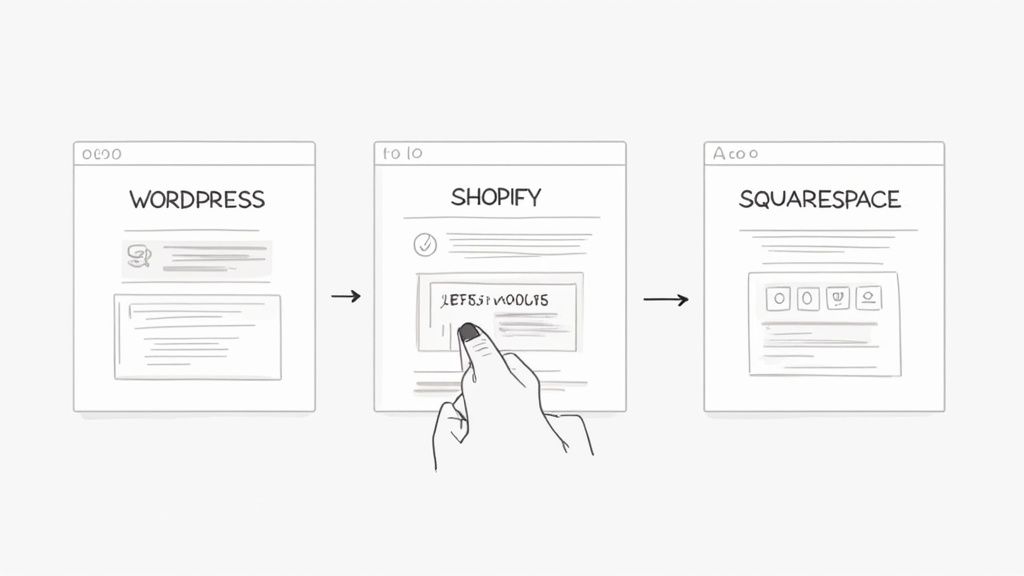
- WordPress: Just add a "Custom HTML" block inside your page or post editor and paste the code right in there.
- Shopify: From your theme editor, find the section where you want the feed (like your homepage) and add a "Custom Liquid" or "Custom HTML" block.
- Squarespace: When editing a page, click an insert point and look for the "Code Block" option. That's where your snippet goes.
If you're using another platform that works with HTML, you can drop the code directly into the body of your page's HTML file. It's the same straightforward process you'd follow to embed a calendar on your website, making it simple to add all sorts of live content.
Key Insight: Don't let the word "code" scare you. Think of the Widgetly snippet as a pre-packaged instruction. Your only job is to drop it into the right box on your site - no coding knowledge needed.
Once you’ve pasted the code and hit save, your custom Instagram feed will appear instantly. It will automatically pull in your new posts as you share them on Instagram, keeping your site's content fresh with zero extra effort. You've officially brought your social proof right onto your digital doorstep.
Pro Tips for a High-Performing Feed

Getting an Instagram feed onto your website is just the start. The real magic happens when you turn that simple gallery into a powerful marketing tool that actually drives results. It's all about being strategic with curation, performance, and where you place it.
For instance, you can use hashtag filters to pull in user-generated content (UGC) from a specific campaign. Imagine you're a clothing brand launching a new collection. You could set up a feed that automatically grabs any public post tagged with #SummerStyle2025. Suddenly, your product pages are filled with authentic social proof from real customers.
This is a great way to tap into the influencer economy, especially since 57.1% of marketers see Instagram as their top platform for partnerships. Considering that brands earn an average of $4.12 for every $1 spent on Instagram influencer marketing, showcasing that content on your site just stretches that ROI even further. If you're curious, you can dig into more data on the impact of influencer marketing from Netzoll.
Optimize for Speed and Placement
A slow website is a conversion killer. Before you commit to a widget, make sure it uses lazy loading. This is a non-negotiable feature where the Instagram images only load as a visitor scrolls down the page. Without it, your feed could drag down your site's load time, which is bad for both user experience and SEO.
Placement is just as critical. Where you put the feed should depend entirely on the goal of the page.
- Product Pages: This is the perfect spot for a feed showing customers using that exact product. It builds trust right at the moment someone is thinking about buying.
- About Us Page: Use the feed here to show off team photos or behind-the-scenes content. It’s a fantastic way to add personality and put a face to your brand.
- Homepage: A dynamic, curated feed can make your homepage feel fresh and current, giving visitors an immediate reason to click around and explore.
By curating your content, keeping an eye on performance, and placing your feed thoughtfully, you’re no longer just decorating your site. You’re using a smart tool that engages visitors and helps you hit your business goals.
Got Questions About Your Instagram Feed?
When you’re thinking about adding a live Instagram feed to your site, a few questions always seem to pop up. Let's walk through the most common ones I hear so you can get started without any guesswork.
The number one concern is almost always about speed. Will this shiny new feed slow my website down to a crawl? It’s a totally fair question. The short answer is: no, not if you use the right tool. A well-designed widget like Widgetly is built with performance in mind, using a technique called lazy loading. This means your images only load as someone scrolls down the page, so there's no heavy, upfront impact on your site's speed. Most of the time, you won't even notice it's there.
What Kind of Account and Content Can I Use?
People also ask if they need a specific type of Instagram account. For this to work, yes, you’ll need to have an Instagram Business or Creator account. This is a requirement from Instagram itself - its API (the tech that lets tools pull in your content) only works with these professional accounts. Don’t worry, switching is free and it gives you access to a ton of useful analytics anyway.
The best part about embedding a feed is that you're not just stuck with your own posts. You have a lot more flexibility than you might think.
This brings up another great question: can you show posts that aren't from your own account? Absolutely. This is where things get really interesting for your marketing.
- Hashtag Feeds: You can pull in any public post that uses a specific hashtag. Imagine running a campaign and having all that fantastic user-generated content appear right on your website.
- Feeds from Other Profiles: You can also display posts from any other public profile. This is perfect for showcasing content from a partner brand or an influencer you're working with, adding a nice layer of social proof.