
Unlock the Best Widgets for Notion – Boost Your Productivity
Widgets for Notion are basically small, embeddable apps that bring your pages to life with interactive or dynamic content. Think of them as mini-tools for your workspace. You can drop in a live weather forecast on your daily planning page or a progress bar to track your project goals—all without ever leaving Notion.
How Widgets Are Changing the Notion Game
Notion is an amazing tool, but let's be honest, its built-in blocks can sometimes feel a bit static. Widgets are the perfect solution. They fill in the gaps by adding dynamic elements that can turn a simple page into an interactive dashboard that actually works for you. They break down information silos by pulling in data from other apps right where you need it.
This is what makes widgets for Notion so incredibly useful. Instead of juggling a dozen tabs for your calendar, clock, or to-do list, you can bring everything together into one clean, unified space. It's a huge time-saver and, more importantly, it cuts down on the mental drag of switching between different apps, helping you stay focused.
From Static Pages to Dynamic Dashboards
The real fun begins when you start mixing and matching widgets to create a system that's completely your own. Imagine building a project management hub that includes:
- A live Google Calendar view to see your team's schedule right next to your project tasks.
- A Pomodoro timer to help you power through deep work sessions from your project page.
- A "Year in Progress" bar to keep those long-term deadlines from sneaking up on you.
- A simple motivational quote display for a little pick-me-up during the day.
This approach completely changes the feel of your workspace. It's no longer just a place to type notes; it's a responsive environment built around your specific workflow.
The biggest win with widgets is their ability to pump real-time information and functionality directly into your Notion pages. It’s like the difference between a static notebook and a smart assistant—one just holds information, while the other actively helps you manage it.
This level of personalization is a big reason why Notion has become so popular. Since it was founded back in 2016, Notion has ballooned to over 100 million users. In fact, over 50% of Fortune 500 companies use the tool to run their operations. It's clear that people love being able to build their own tools.
Unlocking New Possibilities
With platforms like Widgetly, adding these powerful features has never been easier. You can find a whole library of ready-made widgets for Notion and pop them into your pages with a quick copy-and-paste.
Here’s a quick look at how a clean, customized widget fits right into a Notion page.
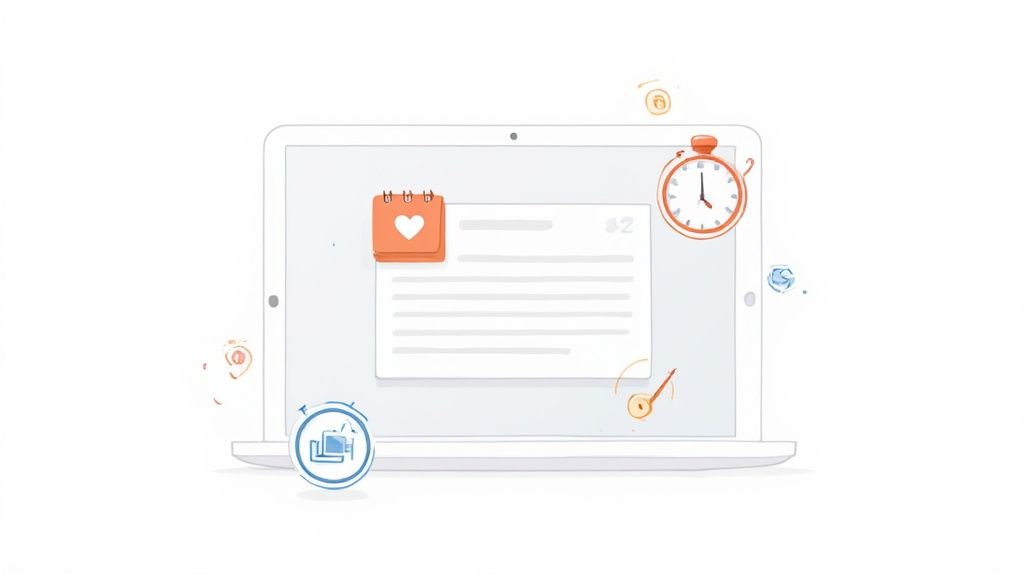
As you can see, it just works. The widget blends in perfectly, adding new capabilities while keeping your page looking sharp. By using these small but mighty tools, you can build a far more organized and engaging workspace, fundamentally changing how you work and stay productive.
Adding Your First Widget to Notion
Getting started with widgets for Notion is surprisingly simple. You really don't need to know any code or have a technical background to start making your pages more dynamic and personal. Let’s go through a real-world example: adding a motivational quote widget to a daily journal page for that little bit of morning inspiration.
First things first, you need to pick a widget. A dedicated library like Widgetly is a great starting point because it has a ton of clean, functional options. For this example, we'll grab a "Quote of the Day" widget. These are fantastic for dashboards because they add a nice touch of positivity without taking up too much space.
Finding and Customizing Your Widget
Okay, once you’ve picked out a widget, it's time to make it your own. This is the fun part where you can get it to match your Notion setup perfectly. Most widget generators have really straightforward on-screen controls.
You can usually tweak things like:
- Color Scheme: Match the background and text to your Notion theme. Whether you're a light mode loyalist, a dark mode fan, or have your own custom colors, you can make it blend right in.
- Font Style: Pick a font that complements the rest of your page to keep things looking clean and consistent.
- Content Settings: For our quote widget, you could probably choose a category for the quotes, like "Motivation" or "Stoicism," to fit the vibe you're going for.
After you've got it looking just right, the widget tool will give you a unique embed link. This link is your golden ticket. Just look for a "copy link" button and give it a click.
Embedding the Widget in Your Notion Page
With the link ready on your clipboard, pop over to your daily journal page in Notion. Decide where you want your quote to live—I find the top of the page or a side column works great so it's one of the first things you see.
Now for the magic. Just type /embed and hit Enter. A little block will appear, asking for your link. Paste the URL you just copied into that field and click the "Embed link" button.
And that’s it! Seriously. In a matter of seconds, your custom quote widget will pop up right on your page, ready to go. The same basic process works for almost any widget you can find, from simple clocks and calendars to more advanced tools.
This quick walkthrough shows just how easy it is to add these dynamic elements. The real power, though, comes when you start combining multiple widgets for Notion to build out a full-fledged dashboard. Imagine placing a weather widget next to your daily schedule or, for a more hands-on tool, trying out a to-do list widget from Widgetly to manage your tasks right inside Notion.
Building a More Productive Dashboard
Once you've got the basics down, you'll find that functional widgets are the real secret to a powerful Notion dashboard. Sure, a cute clock is fun, but the tools that actually help you get things done are what truly matter. I'm talking about practical, hard-working additions like live calendars, weather forecasts, and custom progress bars that keep you moving forward.
These aren't just for show; they're functional tools you can drop right into your workspace. A smartly placed widget saves you from constantly flipping between apps and losing your train of thought. For example, popping your Google Calendar into your project hub means you never have to leave Notion just to check your next meeting.
Essential Widgets for Your Workflow
The trick is to pick widgets for Notion that solve a real problem for you. A student building a study hub might embed a Pomodoro timer to stay locked in during focus sessions. A freelancer, on the other hand, could add a time tracker to their client portal to log billable hours without breaking their workflow.
Here are a few of my go-to widgets that can give your productivity an instant lift:
- Live Calendar: Sync your Google Calendar or Outlook to see your schedule right next to your to-do list. This is a game-changer for project pages and daily planners. We've got a great guide on using Notion calendar templates if you want to dive deeper.
- Weather Forecast: Adding a little weather widget to your daily dashboard is surprisingly useful. It helps you plan your day, from what you'll wear to whether you should run errands before the rain starts.
- Progress Bars: Nothing beats the motivation of seeing a progress bar fill up. Use them for annual goals, project milestones, or even a book-reading challenge. That visual feedback is incredibly powerful.
- Habit Trackers: Embed a simple tracker to keep an eye on daily habits like hitting the gym, reading, or meditating. Having it front and center is a great way to stay accountable.
The infographic below gives you a quick look at how little time it takes to set these up. You can add a serious dose of functionality to your dashboard in just a few minutes.
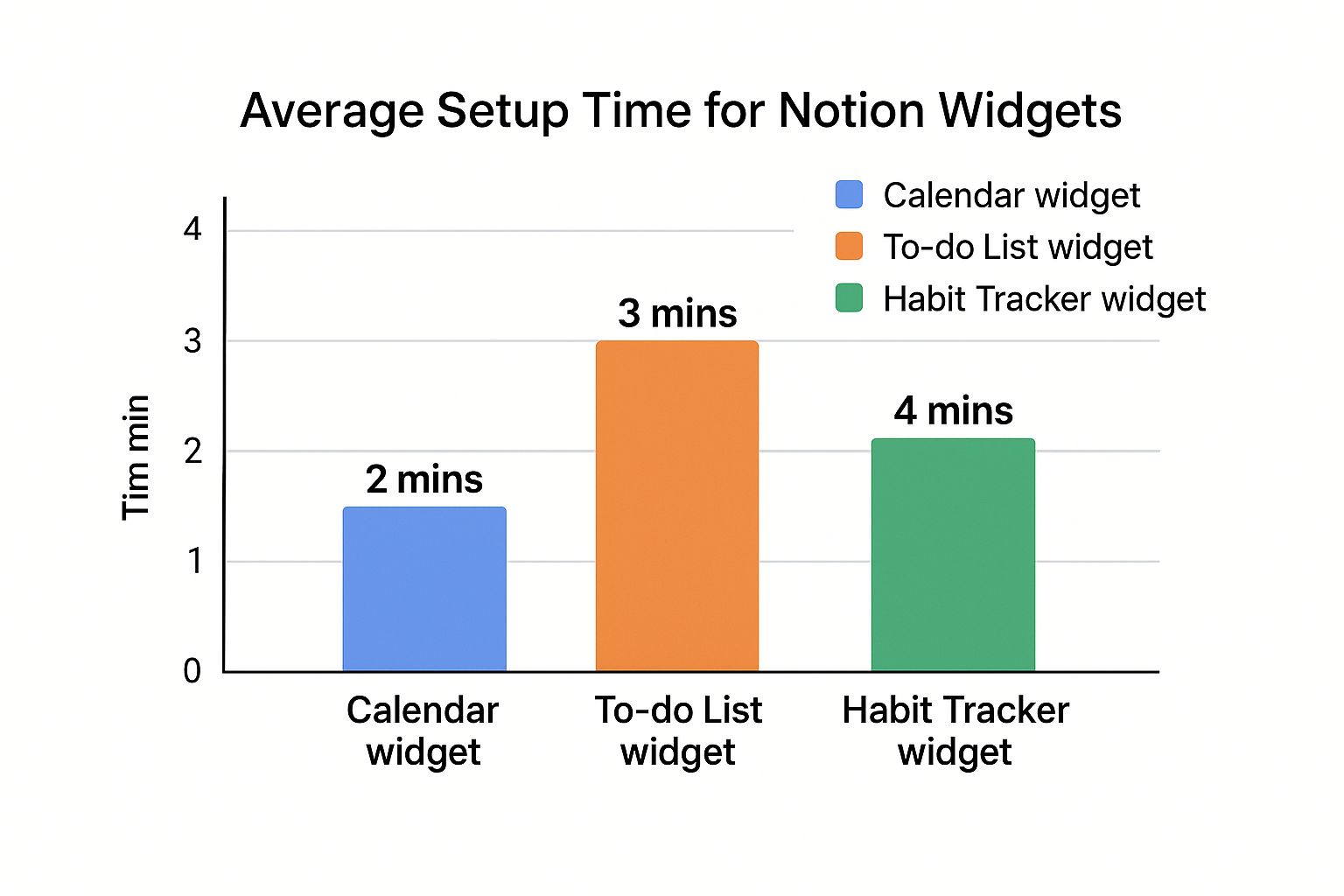
As you can see, embedding a fully functional calendar widget takes just a couple of minutes. That's a tiny time investment for a huge payoff in organization.
Top Widgets for Notion and Their Best Use Cases
So, how do you decide which widgets are right for your setup? To make it easier, I've put together a quick comparison of the most popular options. Each one serves a different purpose, but they all contribute to a cleaner, more efficient workspace.
| Widget Type | Primary Function | Best Use Case | Productivity Impact |
|---|---|---|---|
| Google Calendar | Sync and display your live schedule. | Project hubs and weekly planners. | High - Centralizes time management. |
| Pomodoro Timer | Manage focused work intervals. | Study pages and deep work dashboards. | High - Improves focus and prevents burnout. |
| Progress Bar | Visualize progress toward a goal. | Goal-setting and project tracking pages. | Medium - Provides motivation and clarity. |
| Weather Forecast | Show current and upcoming weather. | Daily dashboards and travel planners. | Low - Adds convenience and context. |
Ultimately, it comes down to choosing the tools that best fit how you work.
The goal is to build a dashboard that anticipates your needs. By embedding the right tools, you create a command center that actively supports your work instead of just storing information.
These widgets for Notion are part of a much bigger trend. The market for digital productivity tools is expected to be worth around $5 billion globally in 2025, which really shows how valuable they've become. Tools like these give you fine-grained control over your workflow by bringing dynamic, interactive content right where you need it. For more on this growing space, check out the analysis of the Notion template economy at FounderPal.ai.
Customizing Widgets for a Clean Aesthetic
Sure, we add widgets for what they can do, but let's be honest—if you don't love how your workspace looks, you're not going to use it. A dashboard that's cluttered or visually jarring just creates friction, making you less likely to actually engage with the systems you've built. This is where customization becomes so important; it’s how you turn a functional page into a place you genuinely want to be.
Making a few thoughtful adjustments ensures your widgets for Notion don't just feel like add-ons. They become a natural part of your page design. When you take the time to match colors, fonts, and sizes, you create a cohesive environment that’s easier on the eyes and keeps you focused on what matters.
Matching Your Widget to Your Theme
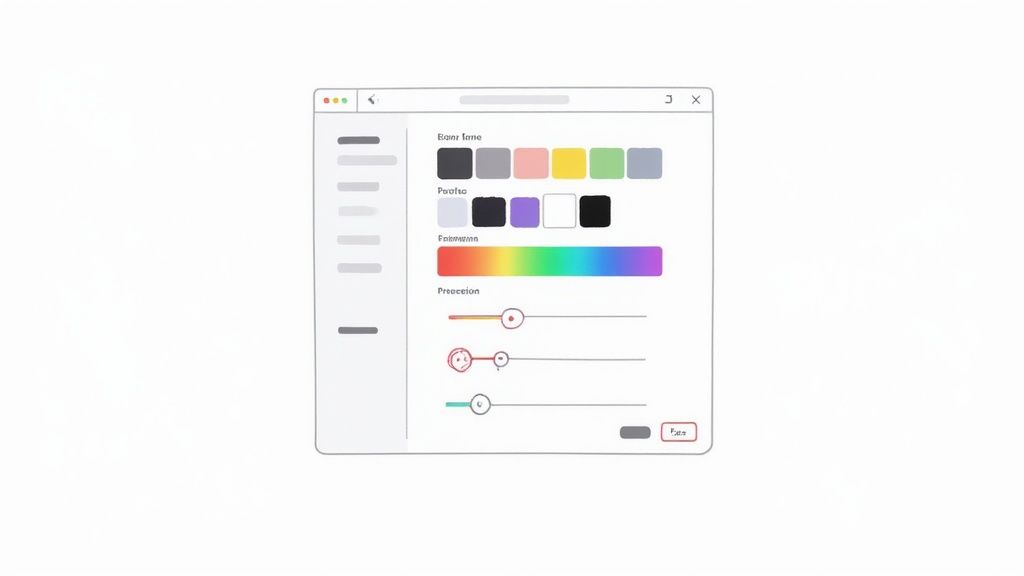
First things first: get your widget's color palette in sync with your Notion theme. Most good widget tools come with simple color pickers for the background, text, and other little details. Before you even start tweaking, it's a good idea to have the hex codes for your main Notion colors handy.
Think about it—if you've crafted a sleek, monochrome dashboard, the last thing you want is a bright blue clock sticking out like a sore thumb. Instead, you can set the widget’s background to match Notion’s default light grey (#F7F7F5) or dark grey (#2F3438) and use a simple black or white for the text. This one small change makes the widget feel like it belongs there, not like it was just dropped in.
A well-customized widget should blend in so seamlessly that it looks like a native Notion block. The goal is to enhance functionality without creating visual distraction.
Beyond just the colors, font consistency is a game-changer. If your Notion pages use the standard sans-serif font, try to pick a similar clean font in your widget settings. Mismatched typography is one of those subtle things that can make a page feel messy without you even realizing why.
Resizing and Arranging for Perfect Flow
Alright, once your colors and fonts are looking good, it's time to think about placement and size. Notion’s drag-and-drop columns are your best friend here, letting you position widgets exactly where they make the most sense. You can easily tweak the width of any embedded widget just by dragging the vertical bars on either side of the block.
Here are a few practical tips I've picked up for arranging widgets:
- Small, passive widgets, like a simple clock or a weather forecast, are perfect for narrow side columns. They're always visible but stay out of your main workspace.
- Larger, interactive widgets, such as your Google Calendar or a to-do list, need more room. Give them a central or wider column where you have space to click around and actually use them.
- Group related widgets together to create functional zones. I like to put a Pomodoro timer right next to my task list to create a dedicated "deep work" section on my dashboard.
This is the kind of control that lets you design a workspace that's not just powerful, but genuinely pleasant to use every day. Spending those few extra minutes to customize your widgets for Notion really pays off every time you open your dashboard to a clean, focused, and personalized space ready for you to get to work.
Advanced Widget Strategies and Common Mistakes
Once you get past the basics of embedding, you can start doing some really powerful things with your Notion workspace. It's less about just dropping in cool tools and more about building a smart, connected system that actually helps you get work done without getting in your way.
I've seen this happen time and time again: people get excited and overload a single page with way too many dynamic widgets. While a "mega-dashboard" sounds amazing in theory, stuffing ten or more active widgets for Notion onto one page will bring your loading times to a crawl. Each widget is basically a mini-webpage that Notion has to load, and all that work adds up. A slow dashboard just creates frustration, which defeats the whole purpose.
A much better approach is to create focused, specialized dashboards. Think about having a "Morning Focus" page with just your task list and a Pomodoro timer. Then, you could have a separate "Weekly Planning" dashboard that holds your main calendar and project trackers. This keeps every page feeling snappy and responsive.
Combining Widgets with Notion Databases
Now, here's where things get really interesting. The true power move is weaving your widgets directly into Notion’s own database templates.
Imagine you have a template for new projects. You can build it so that every time you spin up a new project, a pre-configured timer widget is already there waiting for you. No more hunting for your focus tool—it's just part of the process.
This lets you build incredibly efficient, repeatable workflows. For example:
- Client Portals: Set up a database template for new clients that automatically includes an embedded Widgetly feedback form and a shared calendar for booking calls.
- Content Creation: In your content calendar database, create a template that has a pre-built SEO checklist widget and a progress bar tied to your writing and editing stages.
When you do this, your widgets stop being isolated gadgets and become core components of your operational system. You’re not just adding tools anymore; you're actually designing better processes.
Avoiding Unreliable Widget Sources
Another mistake I see people make is grabbing widget code from random, unvetted websites. A broken widget isn't just ugly; it can completely throw off your workflow, especially if it’s something you rely on every day. An old embed link or a service that goes offline overnight can leave a giant, frustrating blank spot on your dashboard.
The best widgets feel like they're a natural part of Notion itself. To get that seamless experience, you have to stick with trusted providers that offer stability, good support, and regular updates. A truly great tool is one you can set up and then forget about—it just works.
To avoid this headache, make it a rule to only use widgets from established platforms. Look for services that are clearly in active development and have a straightforward privacy policy. Sticking to reputable sources for your widgets for Notion is the best way to ensure your dashboard stays reliable, secure, and looking good for the long haul. It protects the investment of time you've already put into building your ideal workspace.
Got Questions? We've Got Answers
Whenever you start bringing new tools into your Notion setup, it's totally normal to have a few questions pop up. Getting those sorted out is the key to feeling confident and making the most of your widgets. Here are some of the most common things people ask.
Are These Notion Widgets Actually Safe?
Absolutely, as long as you stick with trusted sources. The good news is that reputable providers like Widgetly, Indify, and Apption are designed with safety in mind.
They work by giving you a simple embed link. When you paste this into Notion, it creates a secure little window (called an iframe) on your page that just displays the widget's content. Think of it like a picture frame—the widget lives inside it and can't see or touch anything else in your Notion workspace. Your private data stays private.
The big red flag to watch for? If any widget or service asks for your Notion login details directly, hit the brakes. Only grant access to tools you know and trust.
Help! Why Isn't My Widget Showing Up?
This happens to everyone, and it's usually an easy fix. Before you get too frustrated, run through this quick mental checklist, as the culprit is almost always one of these things.
- A broken link: The first thing I always check is the URL I pasted. It’s surprisingly easy to miss a character or not copy the whole thing. A single mistake will stop it from loading.
- A server hiccup: Sometimes the issue isn't on your end. The widget provider's service might be temporarily down. Give your Notion page a refresh in a few minutes or pop over to their website to see if they've posted a status update.
- Spotty internet: Your own connection can be the problem, especially for widgets that pull in live data. A weak or unstable Wi-Fi signal can prevent them from loading correctly.
When in doubt, my go-to move is to just head back to the widget's source and generate a brand-new embed link. You'd be surprised how often that simple step solves everything.
I tell people to think of widgets as tiny web pages living inside Notion. If a regular website wasn't loading, you'd check your connection or refresh the page—the exact same logic works here.
Do Notion Widgets Work on the Mobile App?
Yes, for the most part, but your mileage may vary. Most widgets for Notion will show up and work on your phone, but how well they work often comes down to their design.
Simple, "display-only" widgets usually look great. Things like:
- Clocks
- Quote of the day
- Basic weather forecasts
These are perfect for mobile. But more complex, interactive widgets—like a detailed calendar or an interactive chart—can feel squished or be a bit clunky to use on a smaller screen. They just weren't built for that kind of interaction.
Because of this, I always recommend a quick check on your phone after adding a new widget to a dashboard. It only takes a second and ensures your workspace is just as clean and usable when you're away from your desk.