
Your Guide to Notion Calendar Download and Setup
If you've ever typed "Notion calendar download" into a search bar, you're not alone. It usually stems from a common frustration: Notion's native calendars are great for tracking database items, but they don't talk to the calendars we actually live in, like Google or Apple Calendar.
Why Your Workspace Needs a Visual Upgrade
The biggest headache for most of us is the constant app-switching. We manage our projects in Notion but our meetings and appointments live in Google Calendar. This split creates a clunky workflow, forcing you to jump between tabs just to figure out what your day looks like. It’s a recipe for missed meetings and forgotten deadlines.
An embedded calendar widget cuts right through that problem. It isn't just another database view; it's a live window into your real-life schedule, sitting right on your Notion dashboard. This simple tweak makes a huge difference, transforming a static page into a dynamic hub for your whole life.
The Advantage of a Unified View
When you integrate a visual calendar, you get to see your time-blocked meetings right alongside your project to-do lists. Having that context at a glance is a total game-changer for planning your day. Imagine checking your availability for a client call while looking at the project's task list—all on the same screen. No more double-booking yourself or guessing when you have a free moment.
While this approach enhances Notion, it’s worth noting that Notion itself has been making moves. The standalone Notion Calendar app is a big step forward, but for those of us who live and breathe inside a single dashboard, an embedded widget is still the most streamlined solution. To get the most out of Notion's native features, you can also explore a good https://www.widgetly.co/blog/notion-calendar-template to organize your database views.
My take on this: By bringing your main calendar into Notion, you create a single source of truth. The schedule you see on your dashboard is the exact same one that sends notifications to your phone. It’s all about consistency and peace of mind.
This is all about maintaining your focus and flow. The official Notion Calendar app, which came from their acquisition of Cron in January 2024, is powerful. It syncs Google and iCloud calendars with your Notion tasks, but it's a separate application. It doesn’t live inside your dashboard. For a truly integrated workflow where everything is visible at once, embedding a widget is the way to go.
Notion Calendar App vs Embedded Widget
So, when should you use the standalone app versus an embedded widget? Here’s a quick comparison to help you decide which solution best fits your workflow.
| Capability | Notion Calendar (Standalone App) | Embedded Calendar Widget |
|---|---|---|
| Integration | Deeply connects Notion database items (with due dates) to your calendar. | Displays your existing Google, Apple, or Outlook calendar events. |
| Location | A separate app for desktop and mobile. | Lives directly inside your Notion pages and dashboards. |
| Best For | Power users who want to schedule Notion tasks alongside external events in a dedicated app. | Users who want an at-a-glance view of their schedule within their main Notion workspace. |
| Workflow | App-switching is required to view your calendar and Notion workspace. | All information is visible on a single screen, eliminating tab-toggling. |
Ultimately, both have their place. The standalone app is great for heavy-duty scheduling, while an embedded widget excels at providing quick, visual context right where you do your work.
Finding and Customizing Your Perfect Calendar Widget
The real magic of embedding a calendar in your Notion dashboard is making it feel like it truly belongs there. You're not just dropping in a generic tool; you're creating a command center that matches your specific workflow and aesthetic. This is where services like Widgetly really shine, taking what sounds like a technical job and making it surprisingly creative.
It all starts with picking a calendar widget from their library. From there, you get to dive into the fun part: the customizations that make all the difference. We’re talking about more than just a splash of color—it’s about dialing in the calendar’s function to perfectly suit how you organize your life and work.
Adjusting Your Calendar's Look and Feel
Building a dashboard you genuinely enjoy using is all about personalization. A great place to start is the color scheme. You can tweak the primary colors, background shades, and even the font to align with your Notion theme, giving your entire workspace a clean, cohesive feel.
Another simple but powerful change is setting the default view. Do you need a big-picture monthly overview, or are you more focused on the week ahead? You can set the widget to open exactly how you want it, every single time.
This quick overview shows just how simple the process is.
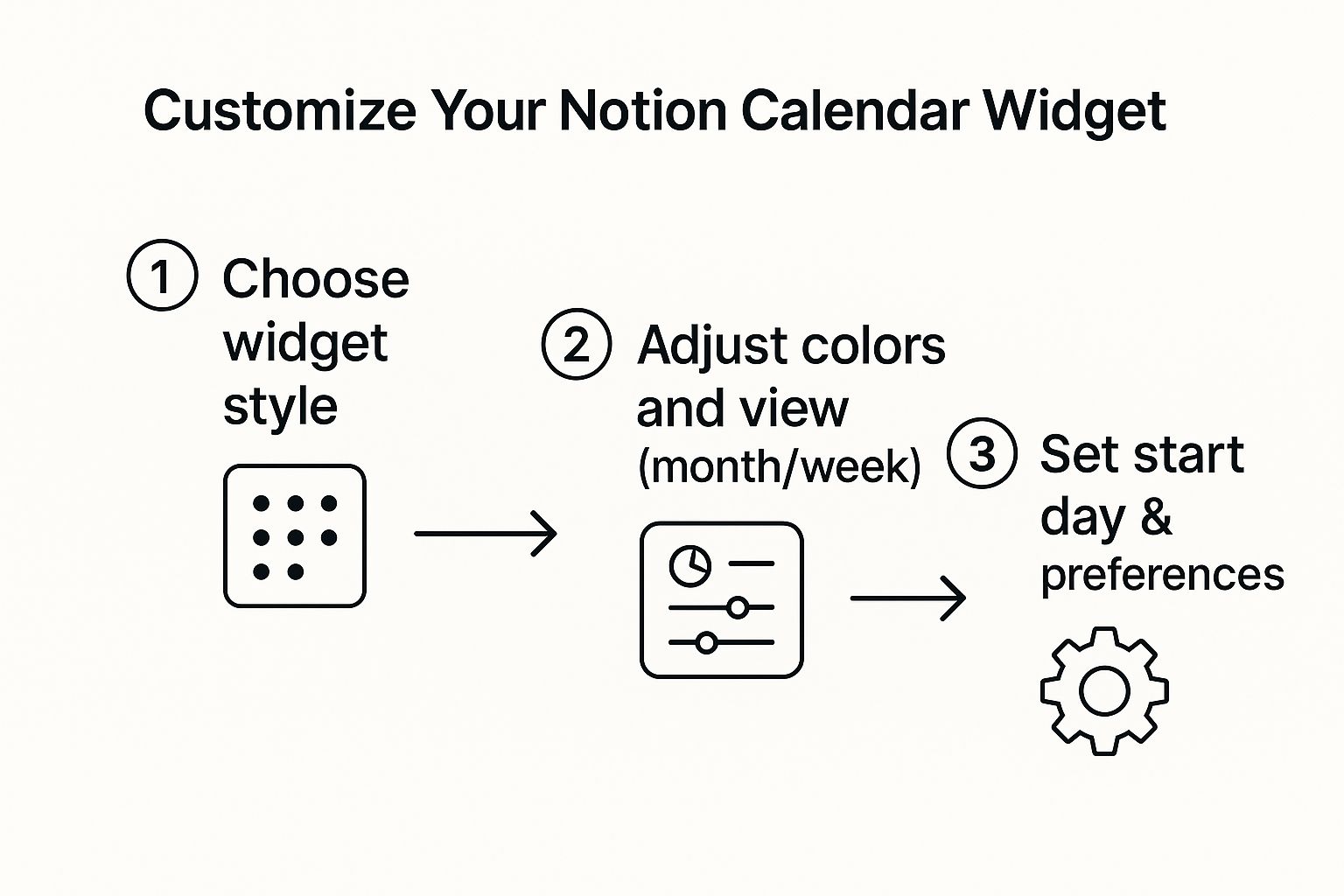
As you can see, it boils down to three core steps: choosing a style, tweaking its appearance, and setting your preferences. It's a straightforward path to a fully personalized tool.
Think about real-world use. A freelance writer might set their calendar to a monthly view to map out content deadlines, while a student might prefer a weekly view to manage class schedules and assignments. Getting these settings right from the start makes the calendar instantly more useful.
Fine-Tuning Your Widget Settings
Beyond the aesthetics, a few practical adjustments can make your calendar much more intuitive.
One of my favorite tweaks is setting the start day of the week. For a lot of people, having the week begin on Monday instead of Sunday just makes more sense for planning out work-related tasks. It's a small change with a big impact on clarity.
The interface for these changes is designed to be super user-friendly, so you don't need any technical background to get it done. You just click, select, and see the changes happen in real-time.
The goal here is to create a tool that feels completely native to your Notion setup. A well-customized widget doesn't just show you information; it enhances your focus by presenting your schedule exactly the way your brain likes to see it.
Ready to give it a try? You can start building your own Notion calendar widget right now and see how it transforms your dashboard. It’s a simple way to create a truly functional and personalized productivity hub.
Getting Your New Calendar into Notion
You've designed the perfect calendar widget, and now it's time for the fun part: bringing it to life inside your Notion workspace. This is where your dashboard starts to feel truly your own, and thankfully, it's incredibly straightforward. All you need is a special link and one simple Notion command.
First things first, grab the unique URL from your widget creator. This link is the key. Just copy it to your clipboard and you're ready.
Next, jump over to the Notion page where you want the calendar to go. Pick the exact spot, click into a new line, and simply type /embed. This is Notion’s magic wand for adding external content.
A small box will pop up asking for a link. Paste your widget URL in there, hit the "Embed link" button, and give it a second. Notion will do its thing, and your custom calendar will appear right on the page.
Fine-Tuning the Layout
Once the calendar is in, you can move and shape it just like any other block in Notion. This is how you get that perfectly organized dashboard look.
- Resize it: Hover over the side of the calendar block until a black vertical bar appears. You can then click and drag to make the calendar wider or narrower to perfectly match your page design.
- Create columns: Want to see your calendar next to your to-do list? Easy. Just drag the calendar block and move it to the right or left of another block. A blue line will appear, showing you where the new column will be created. Let go, and everything will snap into place.
This kind of flexibility is what makes Notion so powerful. By 2025, the platform is projected to offer hundreds of templates, from social media planners to detailed goal trackers. This is a huge deal, especially when you consider that over 70% of digital workers rely on productivity tools to manage their schedules.
My favorite setup is putting a weekly view calendar next to a Kanban board of my current projects. It gives me a single, powerful snapshot of what's on my plate and when I need to get it done.
Learning this simple embedding process is a fundamental skill for customizing your workspace. For a more detailed walkthrough of the whole process from start to finish, take a look at our complete guide on the Notion download and setup.
Building a Smarter Notion Dashboard
https://www.youtube.com/embed/I2-grcfE6j8
Now that your calendar is embedded, the real fun begins. You're ready to move beyond just having a pretty widget on a page and start building a truly functional dashboard in Notion. Think of it as creating a command center for your projects, tasks, and life.
The whole point of finding a "notion calendar download" is to see your schedule in the context of your actual work. For instance, try placing your new weekly calendar view right next to a linked database of your team's project tasks.
Instantly, you get a powerful visual connection between your time and your to-do list. You can see that a major project is due Friday, but your Wednesday is packed with meetings. That visual cue immediately tells you to block out focus time on Thursday.
Creating Contextual Workspaces
One calendar is good, but multiple, focused dashboards are where you'll see a massive difference in your productivity. You can create separate pages for different parts of your life, each with a calendar view that makes sense for that specific context.
A content creator, for example, could build a dedicated dashboard that pulls together a few key elements to manage their entire workflow.
- A monthly calendar widget to get a bird's-eye view of publishing dates and content themes.
- A Kanban board tracking article ideas from "backlog" to "published."
- A simple to-do list for daily writing, research, and outreach tasks.
Placing these elements together on one screen creates an incredibly smooth workflow. You glance at the monthly calendar, see a blog post is due next week, and then drag the matching card on your Kanban board from "Writing" to "Review." The calendar gives you the deadline, and the other Notion blocks help you manage the work itself.
By connecting your schedule directly to your project pipeline, you stop just managing tasks and start strategically managing your time and energy. It brings a new level of clarity and focus to your work at a glance.
Ultimately, the goal is to build a system that works for you, almost intuitively. When you combine a live calendar feed with Notion’s powerful databases and flexible layouts, you create a responsive workspace that doesn’t just hold information—it gives you the context you need to make better decisions, every single day.
Connecting Your Google and Apple Calendars
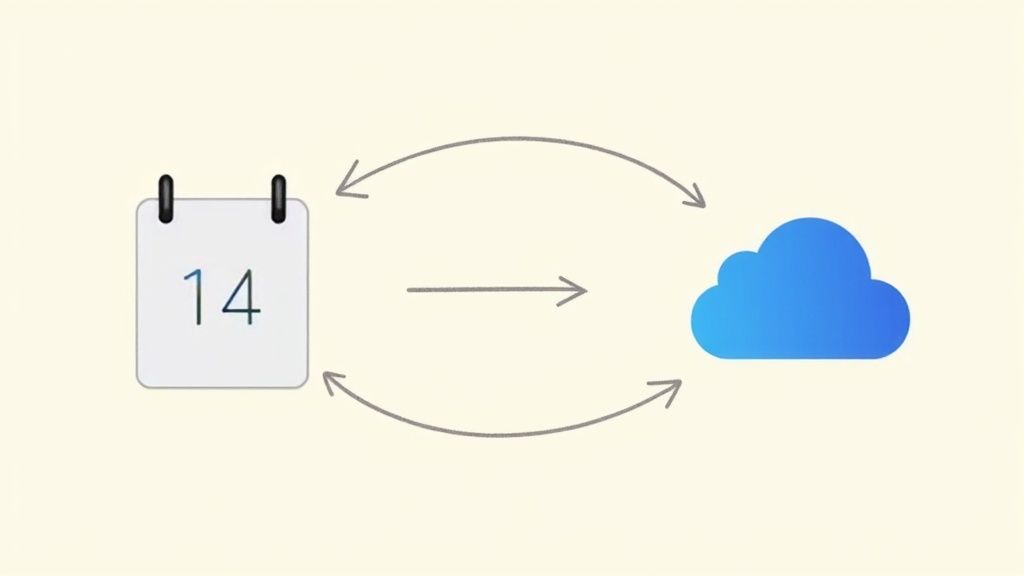
An embedded calendar is pretty useless if it doesn't show your actual schedule. The real magic happens when services like Widgetly connect directly to your primary calendars, like Google Calendar or Apple's iCloud. This connection is what makes your Notion dashboard a true reflection of your life in real-time.
Think about it: you add a last-minute coffee meeting to your iPhone calendar while you're out. With a proper sync, that event just appears in your Notion widget. No double-entry, no manual updates. That’s the key to actually trusting and using your new setup.
Why Cross-Device Sync Is a Game Changer
This automatic syncing is, without a doubt, the biggest win of using an embedded widget. It creates a single source of truth for your schedule, keeping everything consistent across all your devices, which is non-negotiable for anyone trying to stay organized.
Since Notion is available on Windows, macOS, iOS, and Android, it naturally needs to play nice with the calendars people on those platforms use most. That’s why Google Calendar and Apple's iCloud are the two main players here—they're even the core providers for the official Notion Calendar app. You can get the full rundown on the official Notion Calendar integration over at mymeet.ai.
This compatibility means you’re always looking at the latest version of your schedule, whether you’re at your desk or checking your phone in line for lunch.
The whole point is to build one unified view of all your commitments. By pulling events from the calendars you already live in, your Notion workspace transforms into a reliable command center for your entire day.
This completely removes the friction of constantly switching between apps and pretty much eliminates the risk of double-booking yourself or missing an important appointment. It’s all about creating a seamless, integrated system that just works, wherever you are.
A Few Common Questions
When you start playing around with widgets to get a calendar into Notion, a few questions almost always come up. Let's tackle them head-on so you can build out your dashboard with confidence.
Can I Link Notion Database Tasks to My Embedded Calendar?
This is probably the most common point of confusion. The short answer is no, these widgets don't sync directly with your Notion databases. Think of the widget as a live window looking into your external calendar, like a Google Calendar or an Apple Calendar.
What works really well is a side-by-side approach. Keep your hard-scheduled, time-blocked appointments in your embedded calendar widget. Then, place a native Notion Calendar View (that pulls from your project or task database) right next to it. This setup gives you a killer "command center" where you see your fixed schedule and your flexible deadlines all in one glance.
Is It Secure to Use a Third-Party Calendar Widget?
Yes, as long as you stick with a reputable provider like Widgetly, it's a very secure process. These services connect to your calendar account using industry-standard authentication (like OAuth).
This means the widget gets read-only permission to display your events, but it never sees or stores your actual password. Your login info stays safely between you and Google (or Apple). It’s always a good habit to glance at the privacy policy of any tool you connect, but this method is solid.
The connection is designed for display purposes only. It’s a secure and widely trusted method for creating a visual layer in your dashboard without compromising your account's security.
Does the Embedded Calendar Update Automatically?
It sure does. The widget is a live, dynamic view of your source calendar. Whenever you add a meeting on your phone or your colleague shifts an appointment, that change will automatically show up in your Notion embed.
You might see a tiny delay—maybe a minute or so—for the sync to happen, but you never have to hit a refresh button. Your Notion dashboard will always have the most up-to-date version of your schedule.
Will Embedding a Calendar Slow Down My Notion Page?
For the most part, no. Modern widgets are designed to be incredibly lightweight and are optimized for performance.
If you were to load up a single page with a dozen complex, heavy embeds, you might notice a slight lag. But adding a single calendar widget? The impact on your page's speed is so small you'll likely never even notice it. They're built to be a seamless addition.