
Build a Notion Calendar Template from Scratch
Let's be honest, hunting for the perfect Notion calendar template usually ends in the same place: realizing you should have just built it yourself. While grabbing a pre-made template feels like a quick win, a truly great system is one you create from the ground up—a tool that actually fits how you work.
Ditching Pre-Made Templates for a Custom Calendar
It’s tempting to download a beautifully designed template, but that initial excitement can fade fast. You often find yourself wrestling with a system someone else designed, packed with features you don't need and missing the ones you do. Before you know it, you're spending more time deleting columns and tweaking properties than actually getting work done.
This is exactly why building your own Notion calendar is so powerful. When you start with a blank page, every single element serves a purpose.
- You're in complete control. You decide what matters. A content creator can add fields for "Platform" and "Publish Date," while a project manager might need "Client" and "Milestone." It's your workflow, your rules.
- Say goodbye to clutter. Pre-made templates are notorious for bloat. Your custom calendar will stay lean, clean, and focused only on what's relevant to you.
- You'll actually learn Notion. The process of building your own system is the best way to get comfortable with databases, relations, and linked views. These are skills you'll use across your entire workspace.
A System Built for the Long Haul
Think about managing a content plan across multiple channels. A generic template might offer a basic "Status" dropdown. But in your custom build, you can create a detailed pipeline with stages like "Idea," "Drafting," "Review," and "Published." That's a level of detail you just can't get from a one-size-fits-all solution.
You’re not just plotting dates on a calendar; you’re designing an operational dashboard that works the way your brain does.
The real magic of a custom Notion calendar isn't just about scheduling. It's about creating a central hub that mirrors how you think and work, making your entire organizational system feel natural and effortless.
This move toward personalized setups is catching on. It's expected that over 30 million users will be actively using Notion for planning by early 2025. In fact, a recent analysis showed that 85% of people who tried Notion's calendar for content planning saw a real improvement in hitting their deadlines. You can read more about these Notion usage findings on 2sync.com. It just goes to show how effective a dedicated, personalized system can be.
Building Your Core Calendar Database
Every great Notion calendar starts with a solid foundation, and that foundation is the database. Think of it as the brain of your entire system. It's not just a place to dump tasks; it’s where all your events, projects, and deadlines live, breathe, and connect. Getting this part right from the beginning is the key to creating a calendar that actually works for you, not against you.
To kick things off, just create a new page in Notion. You'll be prompted to choose a block type—go ahead and select "Table" from the database options. I always start with a table view because it gives you a clean, straightforward grid to set up your columns, which Notion calls "properties." These properties are what will give your calendar its structure and power.
Defining Your Essential Properties
What information do you actually need for each calendar entry? It's easy to go overboard here, but I've found that starting with a few core properties keeps things clean and functional. You can always add more complexity later. Clutter is the enemy of productivity, so let's stick to the must-haves for now.
Here are the non-negotiables I recommend for any calendar database:
- Task Name: This is your
Titleproperty. Notion includes this by default, and it’s simply what you call the event or task. - Date: Obviously, you need a
Dateproperty. This is what puts your items on the calendar. You can set specific times, or even create date ranges for multi-day events or projects. - Status: A
SelectorStatusproperty is perfect for this. I use simple labels like "Not Started," "In Progress," and "Done". This gives you that at-a-glance view of where everything stands. - Category: I prefer a
Multi-selectproperty here. It lets you tag entries with labels like "Marketing," "Personal," "Client Work," or "Content Creation." This makes filtering your calendar an absolute breeze later on.
This simple setup is the backbone of an effective system. It's all about creating structure that supports your workflow, not complicates it.
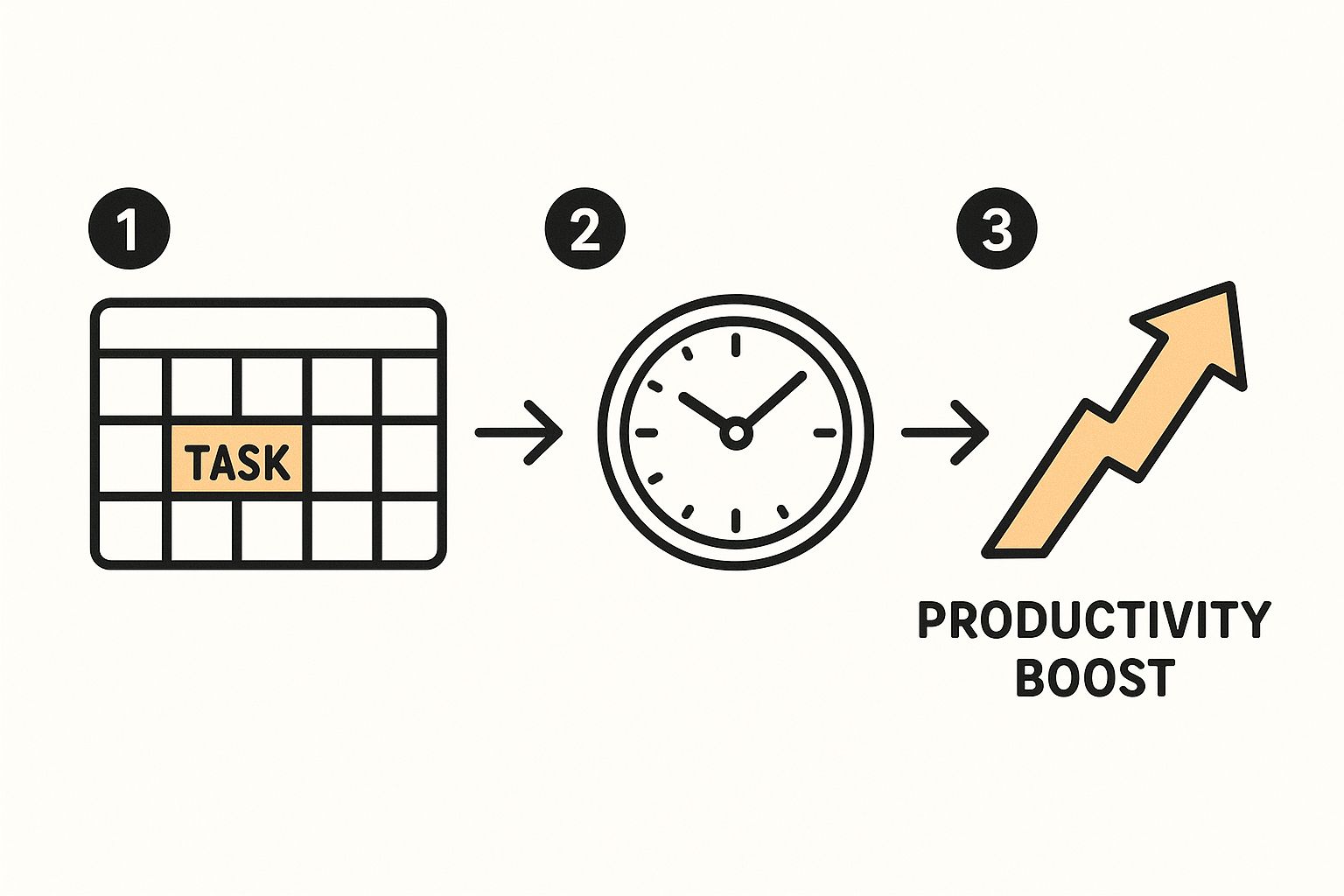
The image above really drives home how a well-organized digital calendar, built on a strong database, is a direct path to better productivity and time management.
A well-thought-out set of properties is crucial. It dictates how you can sort, filter, and view your information across your entire workspace. Here’s a quick breakdown of properties I’ve found essential over the years.
Essential Database Properties for Your Custom Calendar
| Property Name | Property Type | Primary Function | Example Usage |
|---|---|---|---|
| Task Name | Title | The primary identifier for an entry. | "Draft Q3 Marketing Report" |
| Date | Date | Schedules the entry on the calendar. | Setting a deadline for October 25th. |
| Status | Status | Tracks the progress of a task. | Moving a task from "In Progress" to "Done". |
| Category | Multi-select | Tags entries for easy filtering. | Labeling an item as "Client Work" and "High Priority". |
| Project | Relation | Links a task to a larger project. | Connecting "Design Mockups" to the "Website Redesign" project. |
| Assignee | Person | Assigns responsibility to a team member. | Assigning a task to a specific colleague. |
| Priority | Select | Indicates the urgency of a task. | Marking an item as "P1 - Urgent" or "P3 - Low". |
These properties are just a starting point, but they cover most use cases and provide a robust framework for nearly any kind of calendar you want to build.
Connecting Your Calendar to Your Workspace
Okay, this is where Notion really begins to shine. A standalone calendar is fine, but an interconnected one is a game-changer. The Relation property is your best friend for this. It lets you link your calendar entries to other databases, turning a simple schedule into the central nervous system of your workspace.
For example, let's say you have a separate database just for your projects. By adding a Relation property to your calendar, you can link a specific task—like "Write first draft"—directly to its parent project, "New Website Launch."
By linking your calendar entries to other databases like project hubs or meeting notes, you create a web of interconnected information. This means you can see all tasks related to a specific project with a single click, eliminating the need to search through disconnected pages.
I do this all the time as a content creator. I have a "Content Ideas" database where I flesh out concepts. When I'm ready to schedule a blog post, I create an event in my calendar ("Write post on Notion templates") and use a Relation to link it directly to the idea page. Now, when I open the calendar event, I have one-click access to all my notes, outlines, and research.
This seamless connection is what saves tons of time and mental energy. With this solid database foundation in place, we're ready for the fun part: making it visual.
Designing Smart Views for Daily Productivity
Your calendar database is the engine, but it’s not the dashboard. All that raw information isn’t very useful on its own. The real magic happens when you create different "views" to slice and dice that data, turning a simple list of dates and tasks into a powerful, actionable command center.
Using Notion's linked database views, you can look at the same core data in a dozen different ways without ever duplicating a single entry. Think of it as having multiple lenses for your schedule. You might need a high-level monthly overview for planning, but a nitty-gritty weekly list to actually get things done. This flexibility is exactly why so many people are building their own Notion calendar templates from scratch.
Crafting Your Essential Views
Let’s start by building a few of the most useful views. Go to a new Notion page, type /linked view of database, and pick the calendar database you just made. This creates a live window into your master calendar that you can shape however you like.
From my experience, these three views are the perfect starting point:
- Monthly Calendar View: This is your classic, big-picture look at the month ahead. It’s perfect for spotting busy weeks, planning around major deadlines, and just getting a feel for the rhythm of your schedule.
- Weekly Agenda View: For this one, change the layout to a
ListorTable. Then, add a filter to show only entries where the date is "This week." This immediately becomes your go-to for daily execution and planning what’s right in front of you. - Kanban Progress Board: My personal favorite for managing projects. Just switch the layout to
Boardand tell Notion to group everything by your "Status" property. Now you can physically drag tasks from "Not Started" to "In Progress" and finally to "Done." So satisfying.
And this isn't just about feeling organized; it has a real impact. A 2024 study of 2,000 teams found that 58% were using Notion for task coordination. The teams that adopted custom calendar templates saw a 22% drop in missed deadlines and a 17% boost in on-time project delivery.
Advanced Filtering for Ultimate Focus
Okay, now for the fun part. Advanced filters are what turn a good Notion calendar template into a truly intelligent system that shows you only what you need to see, exactly when you need it.
A "Today" view, for example, is non-negotiable for staying productive. Create a new linked view and apply two filters: one where the "Date" is "Today," and a second where the "Status" is not "Done." Bam. You now have a clean, focused list of what you need to accomplish right now, with no distractions.
Your goal is to build a dashboard, not just a calendar. By combining different views and smart filters on a single page, you create a command center that eliminates the need to jump between different apps or pages to understand your priorities.
Think about how a marketing team could use this. The same master calendar database can power several different views on their dashboard:
- A calendar view filtered by "Category" to show only "Social Media" posts.
- A list view filtered to show "Blog Content" that's still in the "Drafting" stage.
- A timeline view for an upcoming "Email Campaign" to visualize the entire launch sequence.
Each view pulls from the same source of truth, so everyone is working with the latest information without being cluttered by tasks that aren't relevant to them. It’s a system built for focus.
This is also a fantastic way to integrate personal goals. If you're managing professional projects and personal habits in the same space, you can apply these same principles. Our guide on building a Notion habit tracker dives deeper into how you can use linked databases for personal development, too.
Adding Interactive Widgets to Your Calendar
Your Notion calendar is looking great—it’s organized and functional. But what if we could make it even more powerful? While Notion is a beast at handling databases and structure, it can feel a bit static. This is where widgets come in. They let you pull in live, dynamic information from other apps, turning your calendar page into a true command center.
Think of widgets as little applets you can drop right into your Notion page. You could have a live weather forecast sitting next to your to-do list, a clean and simple clock to keep you on track, or even a live view of your Google Calendar. These small additions bring a level of real-time functionality that Notion just doesn't have out of the box.
Choosing the Right Widget for Your Needs
The trick is to be intentional. Don't just add widgets for the sake of it—that’s a fast track to a cluttered, distracting dashboard. The best approach is to identify a specific gap in your workflow and find a widget that fills it.
Here are a few ideas I've seen work really well:
- Live Clock Widget: It sounds simple, but having an aesthetic clock right in your workspace helps you stay mindful of the time without glancing at your phone. It’s a small tweak that keeps you focused.
- Google Calendar Embed: This one is a total game-changer. You can embed a view-only version of your Google Calendar to see external appointments right next to your Notion tasks. No more switching between tabs.
- Weather Widget: If your plans involve anything outside the office, from running errands to meeting a client for coffee, a live weather forecast can be surprisingly handy.
These are just a few starting points. If you want to see what else is possible, checking out a curated list of widgets for Notion can spark some cool ideas for making your setup truly your own.
A Practical Scenario: Embedding a Team Calendar
Let's look at a common problem and how to solve it with a widget. Imagine you run a small content team. All your internal tasks—draft deadlines, review cycles, and publishing dates—are perfectly tracked in your Notion calendar. But all your external commitments, like client calls and interviews, live in a shared Google Calendar.
Constantly bouncing between Notion and Google Calendar is a recipe for missed appointments and double-bookings. It’s just plain inefficient. The fix? Embed the Google Calendar right onto your Notion page.
By placing a live, read-only view of your team's Google Calendar next to your Notion task list, you create a single source of truth. Suddenly, internal project deadlines and external meetings are all in one place. This eliminates the constant app-switching and makes planning so much easier.
Getting this set up is incredibly simple. Widget providers like Widgetly walk you through customizing the look of your widget—you can tweak colors, fonts, and layouts to make sure it blends in perfectly with your Notion page's aesthetic.
Once you’ve got it looking just right, the tool gives you an embed link. All you have to do is paste that link into Notion and hit "Create embed." You can then drag and resize the widget to fit perfectly next to your calendar. With that one simple move, your custom Notion calendar template becomes a smarter, more connected hub for your entire workflow.
Taking Your Calendar to the Next Level with Automation
Okay, so you've built a solid calendar structure and dropped in some cool widgets. Now for the fun part: making your Notion calendar work for you. A truly great system doesn't just hold your tasks; it actively helps you get them done by cutting out the boring, repetitive stuff. This is how you transform a simple schedule into your personal productivity engine.
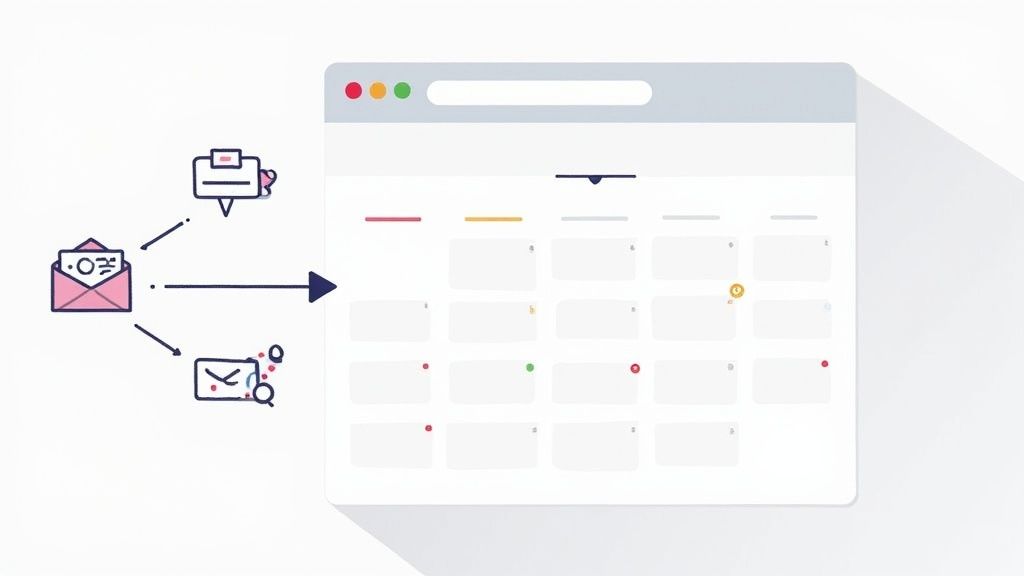
The single best place to start is with database templates. This is a game-changer. It lets you create pre-built skeletons for any kind of event or task you regularly add to your calendar. Instead of starting from scratch every single time, you just click a button.
Think about it. If you're a content creator, you could make a "New Blog Post" template. Every time you use it, a new page appears with your entire writing checklist already there, the category is automatically set to "Content," and the status is pre-filled as "Not Started." This little trick saves you a few minutes each time, but over a month, that adds up to a surprising amount of reclaimed time.
Set It and Forget It: Automating Your Routine
Beyond creating single entries, you can put your recurring tasks on autopilot. Notion’s built-in repeat feature is your best friend for anything that happens on a regular schedule—think weekly team meetings, monthly reports, or even just remembering to pay a bill. Set it up once, tell Notion how often it repeats, and it will magically pop up on your calendar when it's supposed to.
I like to think of automation as building good habits directly into my calendar. When templates and recurring tasks are set up, I'm not wasting brainpower on the setup. I can just dive straight into the actual work.
For tasks with deadlines, Notion formulas can give your calendar a bit of a brain. A really useful one is a "Days Until Due" property that shows you exactly how much time you have left. It’s a simple visual cue that creates a natural sense of urgency and makes it way easier to prioritize what to tackle first.
Here's a quick way to do it:
- Use a
dateBetween()formula: This calculates the number of days betweennow()(today) and your "Due Date" property. - Add an
if()statement: Make your formula even smarter by having it display messages like "Overdue!" or "Due Today" when the time is up.
These little tweaks make your notion calendar template feel responsive and alive. They cut down on manual input and give you genuinely helpful, at-a-glance information about your schedule.
If you're ready to go even deeper down the automation rabbit hole, our guide on how to automate repetitive tasks has plenty more ideas. By weaving these techniques into your setup, your calendar stops being just a list and starts becoming a proactive partner in getting things done.
Questions You'll Probably Have About Your New Notion Calendar
Alright, so you’ve built out your shiny new Notion calendar. That’s awesome! But as you start living in it day-to-day, you’re bound to run into a few questions. It happens to everyone.
Let's walk through some of the most common head-scratchers I hear. These are the practical, real-world issues that pop up once you move beyond the setup phase.
"Can I Sync This With My Google Calendar?"
This is, without a doubt, the number one question. Can you get your Notion calendar to play nice with external calendars like Google Calendar or Outlook?
The short answer is yes, but with a catch. Notion doesn’t have a built-in, two-way sync just yet. What you can do is embed a view-only version of your Google or Outlook calendar right on the page, just like we did with the other widgets. It’s a great way to see everything in one place.
If you're looking for a true two-way sync—where adding an event in Google automatically creates an item in your Notion database and vice-versa—you’ll need to bring in an automation tool. Services like Zapier or Make are perfect for this, letting you build a bridge between the two platforms.
"How Do I Share This With My Team?"
Sharing your calendar with teammates, clients, or a virtual assistant is surprisingly simple. Just look for the "Share" button at the top-right of your Notion page.
When you invite people, you can fine-tune what they're allowed to do. Here are the permissions you can set:
- Full access: This is for trusted partners. They can edit everything, change properties, and even share the page with others.
- Can edit: Great for most team members. They can add and update calendar entries but can't mess with the page's sharing settings.
- Can view: This is read-only mode, which is ideal for sharing a project timeline with a client without them accidentally moving things around.
Want to let someone copy your entire setup for themselves? Just publish the page to the web and flip on the "Allow duplicate as template" toggle. It’s a fantastic way to share your system with the world.
A piece of advice I always give: don't over-engineer your calendar from the start. It’s so tempting to add a dozen properties, but stick to the essentials at first—like a date, a status, and a category. A simple system you actually use is infinitely better than a complex one that gathers dust.
"What About Recurring Tasks?"
For the longest time, this was a major pain point in Notion, but they’ve finally fixed it. You can now set up recurring tasks without any weird workarounds.
When you're creating or editing a calendar entry (which is just a database item), click the ... menu inside the page and choose "Repeat." From there, you can set it to repeat daily, weekly, monthly, or on whatever custom schedule you need. This is a game-changer for things like weekly team check-ins or end-of-month reports.