Your Guide to the Notion Download for Any Device
Ready to get Notion set up? The first step is figuring out which version fits your workflow best. You’ve got a few solid options: the dedicated desktop app for Windows and macOS, the handy mobile apps for iOS and Android, or the super-flexible web app that works in any browser.
Each one is built for a different style of work, whether you're deep in a project at your desk or capturing a flash of inspiration on the go.
Choosing the Right Notion Version for You
Before you hit that download button, think for a minute about where and how you’ll be using Notion the most. You’re not locked into one choice forever—in fact, most of us end up using a mix of them—but picking the right starting point makes everything feel a lot smoother.
Desktop App: The Powerhouse
If you spend your days at a computer, the desktop app is probably your best bet. It’s a dedicated, focused environment without the distraction of a dozen other browser tabs calling for your attention. I’ve always found it feels a bit snappier, especially when I’m navigating big, complex databases. Plus, its offline access is a lifesaver when my Wi-Fi decides to take a break.
Web App: The Go-Anywhere Option
The web app is all about flexibility. Can't install software on your work computer? No problem. Bouncing between a laptop and a shared family PC? The web app has you covered. There’s zero installation required—just log in from any browser, and your entire workspace is right there waiting for you.
Mobile Apps: For Life on the Move
For everything else, there are the mobile apps. I use mine constantly for quick-capture stuff. Think jotting down a book recommendation, checking my grocery list (which lives in Notion, of course), or snapping a photo of a whiteboard after a meeting and dropping it straight into the relevant project page. They are essential for making sure nothing falls through the cracks when you're away from your desk.
This graphic breaks down the main purpose of each version at a glance.
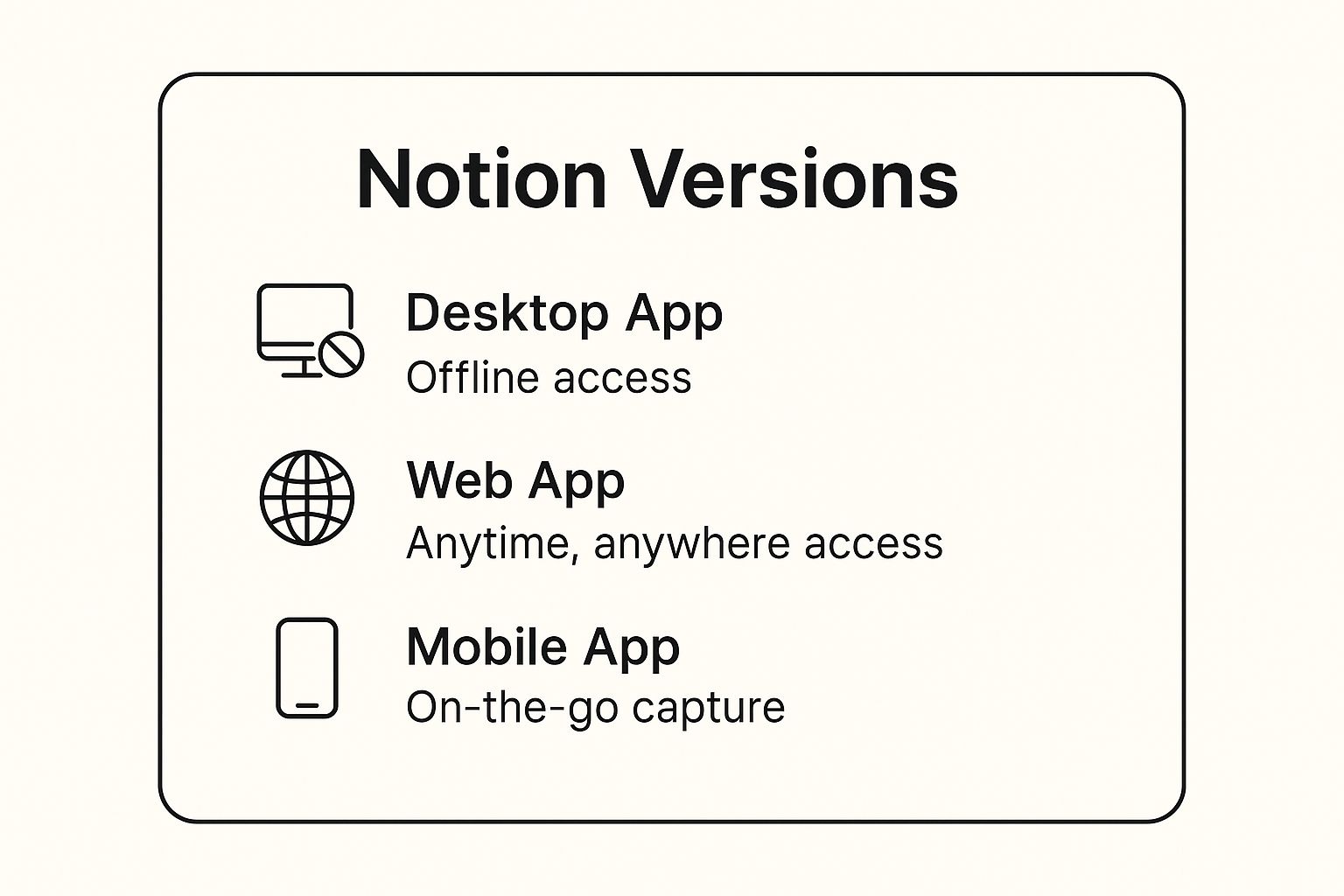
As you can see, each platform is really tailored to a specific environment, from focused work sessions to capturing ideas in the wild.
Notion Platform Comparison
To make it even clearer, here's a quick look at the core differences and best use cases for each version of Notion. This should help you decide where to jump in first.
| Platform | Best For | Key Feature |
|---|---|---|
| Desktop App | Focused, heavy-duty work at your main computer. | Best performance and reliable offline access. |
| Web App | Accessing your workspace from any computer, anywhere. | Ultimate flexibility with no installation needed. |
| Mobile App | Quick notes, checking tasks, and capturing ideas on the go. | Portability and instant capture capabilities. |
Ultimately, the goal is to find a setup that feels natural and supports your daily habits without getting in the way.
Key Differences at a Glance
Let's drill down into the practical details that set them apart.
- Offline Access: The desktop and mobile apps are the clear winners here. They keep a cached version of your recent pages, so you can keep reading and editing even without an internet connection. Everything syncs up automatically the moment you're back online.
- Performance: While they’re all pretty quick, I've noticed the desktop app generally feels the most responsive. This is especially true if you work with massive databases or pages packed with content.
- Convenience: For sheer ease of access, you can't beat the web app. It's the perfect solution for jumping into your workspace from a friend's laptop or a library computer without having to download a thing.
A lot of seasoned Notion users, myself included, land on a hybrid approach. We use the desktop app for the bulk of our work, the mobile app for notes and checklists on the move, and keep the web app bookmarked as a reliable backup.
Your choice of platform will also shape how you engage with different setups. For example, if you spend a lot of time organizing schedules, you’ll find our guide on Notion calendar templates incredibly helpful, and the desktop app is perfect for managing those kinds of detailed views.
Installing the Notion Desktop App
Alright, you've seen what Notion can do, so let's get the most powerful version—the desktop app—set up on your computer. I always recommend grabbing the official Notion download directly from their site. It's the only way to guarantee you have the latest, most secure version without any weird add-ons.
It’s crazy to think that Notion launched back in 2016 and now has a community of over 100 million users. That’s everything from solo freelancers to massive Fortune 500 teams. This isn't just hype; it's proof of how incredibly flexible the tool is, and you're about to see why. If you're curious, you can dive deeper into Notion's growth and stats to see how it stacks up.
Finding the Official Download Page
First, let's get the installer. You'll want to head straight to Notion’s official desktop download page. This is a non-negotiable first step; grabbing the app from anywhere else is just asking for trouble with outdated or even malicious versions.
The page itself is clean and simple, with big buttons for Mac and Windows.
One nice touch is that the website usually detects your operating system and highlights the right download for you, so there’s no guesswork involved.
Installing on Windows
If you're on a Windows machine, this will feel familiar. It’s a standard installation process.
- Click the download button for Windows to get the
.exefile. - Find that file in your
Downloadsfolder and double-click to run it. - You’ll likely see a User Account Control prompt asking for permission. Just click "Yes," and the installer will take care of the rest.
In just a few moments, the Notion app will pop up, ready for you to log in. It’s really that simple.
Installing on macOS
The process for Mac users is just as easy, though there's one small choice you need to make first: which chip does your Mac have?
- For Macs with Apple Silicon: If you're using a newer Mac with an M1, M2, or M3 chip, grab this version. It's optimized for the best performance.
- For Macs with Intel chips: For slightly older Macs, this is the one you'll want.
Not sure what you have? No problem. Click the Apple icon in the top-left corner of your screen and choose "About This Mac." The pop-up window will tell you exactly which chip is running the show.
Once you've downloaded the right
.dmgfile, double-click to open it. You'll see a window with the Notion icon and your Applications folder. All you have to do is drag the Notion icon over to the Applications folder, and that's it—installation complete.
A Few Tips for a Smoother Workflow
Once Notion is installed, a couple of quick adjustments can make a huge difference in your day-to-day use. These are things I do with almost any app I use constantly.
- Pin to Dock or Taskbar: To keep Notion just a click away, right-click its icon in your dock (macOS) or taskbar (Windows) and choose "Pin" or "Keep in Dock." This is a lifesaver when you’re jumping between apps all day.
- Launch at Startup: This is my biggest recommendation. Go into Notion's settings (
Ctrl + ,on Windows orCmd + ,on Mac) and toggle the option to launch at startup. This way, your digital brain is open and waiting for you the second you start your workday.
Getting Notion on Your Phone or Tablet
Let's be honest, your best ideas rarely strike when you're sitting perfectly poised at your desk. They happen in line for coffee, on a walk, or right as you're about to fall asleep. This is exactly why the mobile Notion experience is so essential—it turns your phone or tablet into a true extension of your workspace.
Having Notion in your pocket is a complete game-changer. Think about it: you can jot down a fleeting project idea before it vanishes, pull up meeting notes just as you walk into the conference room, or update your shared grocery list while you're standing in the aisle. The mobile app makes your digital life and your real-world activities feel seamlessly connected.
Download for iOS and Android
Getting the app itself is super simple. Unlike the desktop versions, you won't be heading to the Notion website. Instead, you'll grab it from your device's official app store, which is the best way to make sure you always have the latest, most secure version.
- For iPhone or iPad: Just open the App Store, search for "Notion," and tap "Get." It's a quick download, and you'll be logged in and ready to go in about a minute.
- For Android: Pop open the Google Play Store, look up "Notion," and hit "Install." The process is just as speedy.
Once it's installed, sign in with the same account you use on your computer. All of your pages, databases, and notes will sync up instantly. It's that easy. You now have your entire workspace right in your hand.
The mobile interface is clean and designed specifically for smaller screens, so navigating your pages feels natural and intuitive.
As you can see, your workspace adapts perfectly, keeping everything accessible and easy to read even when you're on the move.
Making the Mobile App Work for You
Okay, just having the app isn't the magic bullet. The real trick is weaving it into your daily flow. One of the most powerful ways I've found to do this is by using widgets to pin my most-used pages directly to my phone's home screen. This little tweak removes the friction of having to open the app, find the right page, and then do what I need to do.
For example, I have widgets set up for:
- My daily to-do list
- A "quick capture" page for random thoughts
- My content calendar
- A shared shopping list with my partner
This simple setup transforms my phone from a potential distraction into a focused tool. If you really want to level up your mobile dashboard, you can learn more about creating powerful widgets for Notion to get instant access to your key information.
The real power of Notion on mobile isn't just about looking at your stuff—it’s about interaction. You can quickly add a task, check off a habit, or upload a photo from your camera roll, and that change instantly appears on your desktop. It keeps your entire system in perfect harmony, no matter where you are.
By truly embracing the mobile app, you make sure your Notion workspace is always just a tap away. This constant access helps build the habit of actually using your system, turning it from just another app on your phone into an indispensable part of how you get things done.
Using the Notion Web Clipper and Browser App
What if you can't install the full desktop app? Maybe you're on a locked-down work computer or borrowing a friend's laptop. Don't worry, your Notion workflow doesn't have to grind to a halt. This is exactly where Notion’s browser-based tools come in handy, letting you stay productive from anywhere.
The Notion Web App is basically the desktop version's twin. You get the same endless canvas, the same powerful databases, and all your pages, right inside your web browser. Just head to notion.so and log in. It’s an incredibly convenient way to access your entire setup without installing a thing.
Sure, the dedicated desktop app feels a bit snappier and gives you offline access, but for most daily tasks, the web version is more than capable. The flexibility is a huge win.
Installing and Using the Web Clipper
The real game-changer for working in a browser is the Notion Web Clipper. It’s a simple extension that lets you grab almost anything you find online and send it straight to your Notion workspace with one click.
Setting it up is a breeze.
- First, head to your browser’s extension marketplace, like the Chrome Web Store or Firefox Add-ons, and search for "Notion Web Clipper."
- Next, just click to add it to your browser. You'll see the little Notion logo pop up in your toolbar.
- The first time you click it, it'll ask you to log in to your Notion account. This links the clipper directly to your workspace, so it knows where to send everything.
Once it's connected, you’ll immediately see how useful it is. Say you're researching a topic for a new project. You can clip entire articles, interesting images, or just specific snippets of text directly into a research page or database. It even automatically saves the source URL, which saves a ton of time.
I use the Web Clipper constantly. Whether I'm saving a new recipe to my meal planning database or clipping an article into my "to-read" list, it's the perfect tool for turning random internet finds into organized, useful information.
Real-World Scenarios for the Clipper
This little tool is way more versatile than just saving articles. It shines in all sorts of practical situations.
For instance, a freelance designer might use it to:
- Build a Mood Board: Clip inspiring visuals from sites like Pinterest or Dribbble and send them directly to a project's mood board page.
- Capture Client Feedback: Highlight a specific comment on a webpage and clip just that selection into a client feedback log.
- Organize Competitor Research: Save key pages from competitor websites into a simple table for a competitive analysis.
The clipper really changes how you use the web. Instead of having a messy folder of bookmarks you never look at again, you can actively pull valuable information into the systems you already use every day. Think of the Notion download for your browser as a bridge that makes the internet a seamless part of your workspace.
Your First Steps After Installing Notion
Alright, you've got Notion installed. Now what? Staring at that first blank page can feel a little daunting, but here's a pro-tip: don't try to build your entire life's operating system from scratch on day one. That's a recipe for burnout.
The secret to getting up and running fast lies in templates. Think of them as pre-built frameworks for just about anything you can imagine—a project dashboard, a recipe book, a weekly planner. They give you structure right away so you can see how Notion works in a practical way, rather than just fumbling with a blank canvas.
Start with a Template
Your first move? Head straight for the official template gallery. Instead of browsing aimlessly, think about the one, single thing that's bugging you right now. Is it a chaotic project? A scattered list of content ideas? Your personal goals for the quarter?
Zero in on a template that tackles that one problem. Here are a few solid choices to get the ball rolling:
- Projects & Tasks: This is usually a simple Kanban board that helps you instantly see what's in progress and what's next.
- Weekly Agenda: A clean, straightforward layout to map out your week and keep your priorities front and center.
- Content Calendar: An absolute must-have if you're a creator. It lets you plan and schedule your work visually.
By grabbing a template, you get an immediate win. In just a few clicks, you have a functional, organized page. This little bit of momentum is huge, and it helps you learn how different blocks and databases actually connect and work together.
The goal isn't to find the "perfect" template that will last forever. It's about finding a "good enough" template that solves an immediate problem. You can—and should—customize and evolve it over time as you learn what works for you.
A simple daily dashboard, for example, can completely change how you approach your day. Once you're comfortable, you can get more specific with trackers for personal growth. If you're looking for some inspiration on that front, our guide on creating a habit tracker in Notion walks you through the entire process.
Organize Your Workspace and Invite a Collaborator
Next up, let's tidy that sidebar. When you first start, it's often cluttered with default pages you don't really need. Don't be afraid to delete the "Getting Started" pages or tuck them away in an archive page.
Create a couple of high-level pages like "Personal" and "Work," then simply drag your new template pages inside them. A clean sidebar makes finding what you need so much faster.
Finally, see Notion’s collaborative magic for yourself. Grab a simple page—maybe some meeting notes or a shared grocery list—and invite someone. Just click the Share button at the top right, pop in their email, and send off the invite.
Doing this one simple thing immediately shows you that Notion is way more than just a personal notebook; it's a shared, living workspace. This collaborative power is a huge reason why over 50% of Fortune 500 firms use it. The platform's incredible growth to a $10 billion valuation was built on its ability to bring teams together. You can find more stats on Notion’s remarkable enterprise adoption to see just how big its footprint is.
Got Questions About Downloading Notion?
Even with a tool as popular as Notion, it's natural to have a few questions before you dive in. After all, you're looking for something to organize your work or your life, so you want to get it right from the start. Let's walk through some of the most common things people ask.
Is Notion Safe and Is It Really Free?
Let's get the two biggest questions out of the way first: cost and safety. The short answer is yes, Notion is completely safe to download and yes, it's genuinely free for personal use.
The key is to make sure you're getting it from the official source. This is non-negotiable for any software, and Notion is no different.
- For Windows and macOS, always head straight to the official Notion website.
- For your iPhone or iPad, use the Apple App Store.
- For Android devices, it's the Google Play Store.
Sticking to these channels ensures you get the real deal—no weird add-ons, no security risks. And that free "Personal" plan? It's incredibly generous. I've seen people run their entire freelance business on it without ever needing to pay a dime.
Can I Use Notion Offline?
This is a big one, especially if you're like me and often find yourself working on a commute or in a coffee shop with questionable Wi-Fi. The answer is a definite yes, but with a small catch.
The dedicated desktop and mobile apps are your best friends here. They automatically save a local copy (or "cache") of the pages you've recently visited. This means you can open, read, and even edit those pages completely offline.
Once you're back online, Notion works its magic. Any changes you made on your laptop on the train will automatically sync up, appearing on your phone and web browser a moment later.
It's this seamless syncing that really makes Notion shine. You don't have to think about it; you can just trust that an idea you jotted down on your phone will be waiting for you on your desktop when you get back to your desk.
What’s the Difference Between the Plans?
When you first sign up, you'll land on the free Personal plan, and honestly, for most people, this is all you'll ever need. It gives you a massive canvas to organize your notes, projects, and personal life.
So, why do paid plans exist? It really boils down to collaboration.
The paid plans are built for teams. They introduce features that you just don't need when you're working solo, like:
- Having unlimited members in a single workspace.
- Granular sharing permissions to control who can edit or just view certain pages.
- Special admin tools for managing a team and keeping company data secure.
My advice? Start with the free plan. Get a feel for it, build out your own system, and see what it can do. If you find yourself needing to bring a team on board down the road, you can always look at upgrading then.