
Build Your Ultimate Habit Tracker Notion Dashboard
Building your own habit tracker in Notion is a game-changer. It lets you break free from the rigid structure of off-the-shelf apps and create something that truly works for you—your goals, your workflow, and your personal style.
Why Use Notion for Habit Tracking?
There are plenty of great standalone habit-tracking apps out there, but they often force you into a box. You're limited by their pre-set features, their design choices, and their overall philosophy. When you build your tracker in Notion, you're not just a user; you're the architect of your own self-improvement system.
The biggest win here is unmatched flexibility. You get to decide exactly what you track, how you visualize your progress, and how it all fits into your life. This is about more than just checking off a daily task; it’s about crafting a central command center that links your small, daily actions to your biggest life ambitions.
Just look at how you can pull different elements together into one clean, organized dashboard.
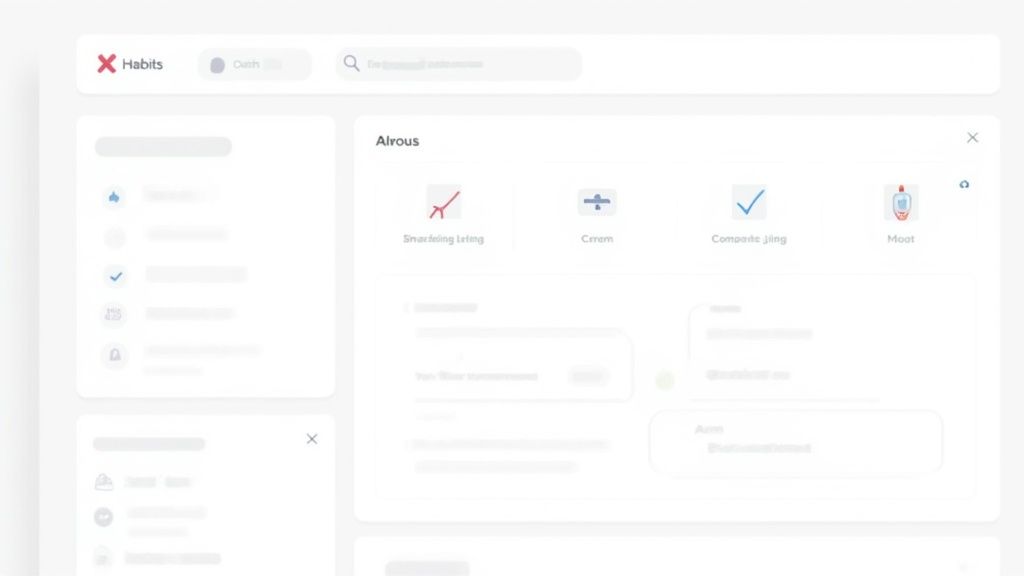
This kind of setup is the foundation of a powerful tracker, letting you mix and match databases, text, and visuals to build a workspace that motivates you.
The Power of a Centralized System
Instead of hopping between different apps—one for your habits, another for your to-do list, and a third for your notes—Notion brings it all under one roof. That integration is where the real power lies.
- Connect Habits to Goals: You can directly link your daily "Read 10 pages" habit to your larger "Finish 12 Books This Year" project.
- See the Big Picture: Your habit tracker can sit right next to your weekly agenda or monthly review, making it easy to spot patterns and adjust your focus.
- Total Customization: Want a minimalist, clean look? You can build that. Prefer a vibrant dashboard with inspiring quotes and widgets? Go for it. The choice is yours.
I've found there’s a real psychological edge to building your own system. The act of creating the tracker itself reinforces your commitment. That sense of ownership makes you far more likely to stick with it for the long haul.
Notion Habit Tracker vs Standalone Apps
So, how does building your own system in Notion stack up against a dedicated app? Here's a quick breakdown of the core differences.
| Feature | Notion Habit Tracker | Standalone Habit App |
|---|---|---|
| Customization | Nearly limitless; you build it from the ground up. | Limited to the app's pre-set options and design. |
| Integration | Natively connects with goals, projects, and notes in Notion. | Operates in a silo; limited or no integration. |
| Learning Curve | Steeper initially; requires some setup. | Low; designed for immediate, out-of-the-box use. |
| Cost | Can be completely free with Notion's personal plan. | Often requires a subscription for full features. |
| Control | You have 100% control over your data and layout. | You are dependent on the app's features and updates. |
Ultimately, standalone apps offer convenience, while Notion offers control and deep integration. If you want a system that adapts to you, rather than the other way around, Notion is the clear winner.
Tapping into a Growing Trend
The demand for personal development tools is exploding. The habit tracking app market, valued at a massive USD 1.7 billion in 2024, is expected to skyrocket to USD 5.5 billion by 2033, according to research from Straits Research. This incredible growth shows a clear trend: people want better ways to manage their lives and well-being.
Notion is perfectly positioned within this trend by giving you the power to create a solution that's entirely your own. And while there are many fantastic dedicated tools out there, which you can explore in our guide to the best habit tracking apps, none can match the complete personalization that Notion delivers.
Building Your Core Habit Database
Before we get into the fun stuff with widgets, we need to build the engine that drives your entire habit tracker. This is the core database in Notion where all your daily habits will live, so getting the structure right from the get-go is key. A solid foundation here makes creating those powerful, automated summaries a breeze later on.
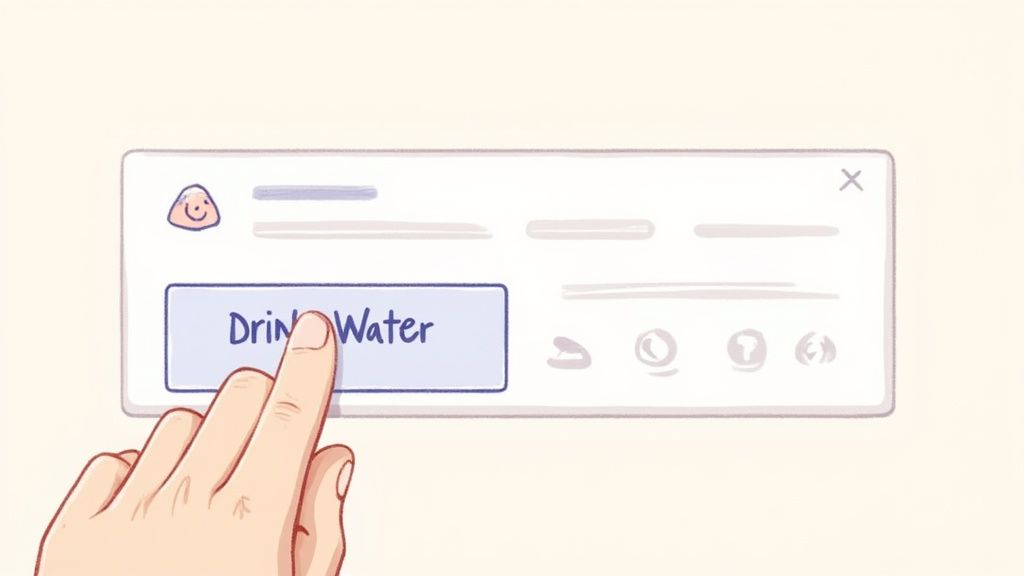
Think of this database as your digital logbook. Every single row will represent a day, and each column is a habit you want to keep tabs on.
Setting Up the Foundational Properties
First things first, create a new page in Notion. Type /database and choose "Database - Inline" to drop one in. I like to name it something simple and clear, like "Daily Log." This is where we’ll start defining the different pieces of information, or "properties," for each daily entry.
Now, let's get the essential properties configured. Each one has a specific job, from basic tracking to enabling some really cool calculations down the line.
- Date: Notion adds a "Name" property by default. You can just rename this to "Day" or "Entry." The crucial property you need to add is "Date." This one is non-negotiable; it's what lets you filter your entries by week or month and create useful calendar views.
- Checkboxes for Habits: For each habit you want to track, create a "Checkbox" property. Think about things like "Morning Walk," "Read 10 Pages," or "Drink 2L Water." Checkboxes give you that satisfying little dopamine hit when you mark a habit as done.
- Number for Quantifiable Habits: Some habits aren't a simple yes-or-no. If you're tracking something like "Minutes Meditated" or pages read, use a "Number" property instead. This lets you log specific values rather than just checking a box.
These basics are enough to get a simple tracker up and running. But the real power of a Notion habit tracker is its ability to automate things for you.
Automating Progress with Formulas
This is the part that turns your database from a plain old checklist into a dynamic, intelligent system. We're going to add a "Formula" property that automatically calculates your completion rate for the day. Trust me, getting that instant feedback is a huge motivator.
Go ahead and create a new property, but this time select "Formula" from the list. Let's call it "Daily Progress."
The formula property is what separates a basic list from an intelligent tracker. It does the math for you, turning simple checkmarks into a meaningful percentage that shows you how well you did each day. It’s instant accountability.
Here's a simple formula to get you started. It just calculates the percentage of your checkbox habits that you've completed. Let's say you have three habits: Morning Walk, Read 10 Pages, and Drink 2L Water. The formula would look like this:
round((toNumber(prop("Morning Walk")) + toNumber(prop("Read 10 Pages")) + toNumber(prop("Drink 2L Water"))) / 3 * 100)
What this little bit of code does is pretty neat. It takes each checked box (which Notion sees as true) and turns it into the number 1. Then, it adds them all up, divides by the total number of habits (which is 3 in this case), and multiplies by 100 to give you a clean percentage.
Now, every time you check a box, your "Daily Progress" property will update in real-time. Getting this foundation in place is crucial before we move on to making it all look great with widgets and building out weekly summaries.
Designing a Visual Dashboard with Widgets
Okay, you've built the engine of your habit tracker with the database. Now for the fun part: making it a place you actually want to visit every day. This is where we go beyond Notion's built-in blocks and give your tracker some real personality using third-party widgets.
A great dashboard isn't just about looking pretty. It's about creating an inviting, motivating space that pulls you in and makes you want to tick off those habits. You can add things like visual progress bars, a new inspiring quote each day, or even a simple aesthetic clock. The goal is to build a habit tracker notion dashboard that’s not just a tool, but a genuine pleasure to use.
Finding and Customizing Your First Widget
The world of Notion widgets can seem huge, but you don't need to get lost in it. A few excellent, user-friendly platforms specialize in widgets made just for Notion. I usually point people toward sites like Indify or Apption to get started, as they offer a ton of free and easy-to-customize options.
Let's walk through what this looks like with a simple progress bar widget.
- First, pick your source. Head over to a widget creation site. Let's say you want a "Yearly Progress" bar to see how far into the year you are.
- Next, make it yours. Most of these sites have a live preview, so you can see your changes in real-time. You can usually tweak the colors to match your Notion theme, pick between light and dark modes, and fiddle with the style until it’s perfect.
- Finally, grab the link. Once you're happy with how it looks, the site will generate a unique URL for you. This is the link Notion needs to display your widget. Just copy it.
This same simple process works for almost any widget you can think of, from live weather displays to countdown timers for your next vacation.
The real magic of widgets is that they show you at-a-glance information that your database can't. A simple quote widget can offer a daily dose of inspiration, while a countdown timer adds a bit of urgency to a big goal. It’s all about adding layers of context and motivation.
Seamlessly Embedding Widgets into Notion
Once you've got your widget's URL copied, getting it onto your habit tracker notion page is a breeze. Notion’s /embed command is about to become your best friend.
Just find an empty spot on your dashboard page and type /embed. A little block will pop up asking for a link. Paste the widget URL you just copied and hit "Embed link." In just a second or two, your custom widget will show up right on the page.
From there, you can drag the corners of the embed block to make it bigger or smaller. I like to use Notion’s column feature to line up a few widgets side-by-side. For example, you could have a clock on the left, a motivational quote in the middle, and your daily habit database view on the right.
Creating a Balanced and Inspiring Layout
A common mistake I see is people going overboard and cluttering their dashboard with too many widgets. This not only looks messy but can seriously slow down your page's loading time. The trick is to be intentional and pick widgets that serve a clear purpose.
Think about a layout that balances data with a bit of inspiration:
- Key Metrics: Use something like a sleek habit counter from Widgetly to show off your current streak for a key habit.
- Time and Focus: A minimalist clock or a Pomodoro timer widget can help keep you grounded and on task.
- Daily Motivation: A simple "Quote of the Day" widget is a small thing, but it can give you a nice little boost every time you open your tracker.
This ability to customize is a huge reason for Notion's massive growth. Between 2019 and 2022, its user base exploded from 1 million to 30 million—a clear sign that people are craving flexible tools like this. By combining just a few key widgets with your core database, you're not just tracking habits; you're building a truly personal space for your self-improvement journey.
Unlocking Advanced Tracking with Formulas
You've got a solid database and a clean dashboard. That's a great start, but now we're going to take your habit tracker notion setup from a simple to-do list to a smart system that actually shows you the patterns behind your daily actions. This is where Notion really flexes its muscles—using formulas to automate your progress tracking.
Instead of just ticking boxes, you can let Notion do the math for you. Simple formulas can crunch the numbers to give you a daily completion percentage, show your weekly progress with a bar, or even pop up a little motivational message like "Great Day!" based on how you did. Getting that instant, automatic feedback is a huge motivator.
This chart, for instance, gives a quick visual rundown of completion rates for a few key habits, showing where you're crushing it and where there's room to grow.
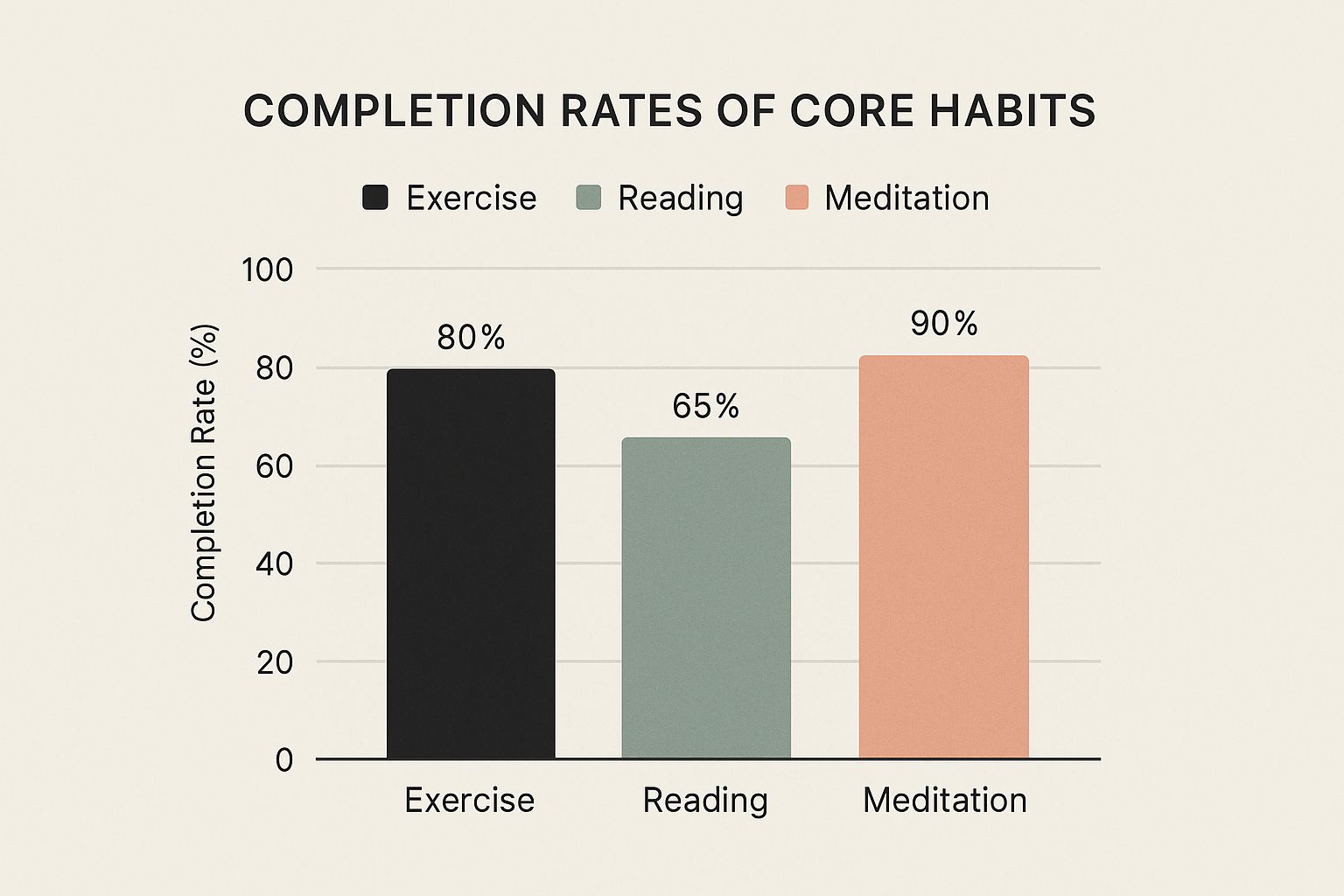
You can see right away that "Meditation" is rock-solid, but "Reading" could use a little more attention.
Automating Daily and Weekly Summaries
Let's get practical. A great starting point is a formula that gives you a daily score. If you're tracking five habits with checkboxes, you can add a formula property that instantly calculates the percentage you completed each day. Suddenly, your effort isn't just a feeling—it's a number you can actively work on improving.
Once you have that, you can take it a step further by connecting your daily entries to a separate "Weekly Summary" database. By using Notion's Relation and Rollup properties, you can pull all those daily scores together and have it automatically calculate your average completion rate for the week. How cool is that? You can open your dashboard on Sunday morning and see your consistency score for the last seven days, all without any manual calculation.
The real goal here is to build a system that tells you a story. A single checked box is just one piece of data. But a formula that calculates a weekly streak? That tells you about your commitment and momentum. That's how a simple list becomes a powerful tool for self-reflection.
To get you started, here are a few simple but powerful formulas you can drop right into your tracker.
Useful Notion Formulas for Your Habit Tracker
This table gives you a few formulas to calculate stats like daily completion rates and progress toward your weekly goals.
| Formula Purpose | Example Formula Code | What It Does |
|---|---|---|
| Calculate Daily Completion % | round((toNumber(prop("Habit 1")) + toNumber(prop("Habit 2")) + toNumber(prop("Habit 3"))) / 3 * 100) |
Adds up your checked habits (as numbers) and calculates the percentage completed out of the total number of habits. |
| Show a Progress Bar | slice("★★★★★★★★★★", 0, floor(prop("Completion %") / 10)) + slice("☆☆☆☆☆☆☆☆☆☆", 0, 10 - floor(prop("Completion %") / 10)) |
Creates a visual progress bar using stars based on your daily completion percentage. |
| Display a Motivational Message | if(prop("Completion %") == 100, "✅ Perfect Day!", if(prop("Completion %") > 50, "👍 Great Effort!", "💪 Keep Going!")) |
Shows a different text message depending on how high your completion percentage is for the day. |
Don't be afraid to tweak these! The real magic happens when you start customizing them to fit exactly what motivates you.
Using Different Database Views for New Perspectives
A standard table gets the job done, but it’s not always the most inspiring way to look at your progress. This is where Notion’s database views come in handy—they let you look at the exact same information in totally different ways.
- Calendar View: This is perfect for seeing your consistency at a glance over a whole month. You can set it up to display your daily completion percentage right on the calendar, making it easy to spot winning streaks or identify which days of the week are toughest for you.
- Gallery View: Looking for something more visual and motivating? A Gallery view can be set to show a specific cover image for every day you hit 100% of your habits. It turns your tracker into a wall of your wins.
- Board View: Try grouping your daily entries by a "Status" property. You could create columns like "On Track," "Missed One," and "Needs Focus." This lets you quickly categorize your days and see where the patterns are.
Adopting these advanced properties and views is a great way to build a more personalized productivity system. People build all sorts of amazing things, like trackers with dynamic charts and progress rings, to monitor their habits. If you want to dive deeper, you can find some fantastic tutorials on YouTube for creating detailed trackers.
The same skills can be used in other parts of your life, too. For example, you can take these concepts and build a Notion financial tracker to manage your budget with the same level of clarity. By playing around with these features, you turn your habit tracker from a static log into a dynamic dashboard that actually keeps you engaged for the long haul.
Keeping Your Tracker Alive and Kicking
Alright, so you’ve built your beautiful habit tracker in Notion. That's a massive win, but the real work starts now. Think of your tracker not as a finished product, but as a living document. It needs to grow and change right along with you.
The biggest mistake I see people make is treating their tracker like something they can set up once and ignore. Before you know it, it's outdated, irrelevant, and feels more like a chore than a tool. The goal is to keep it useful, and that takes a little bit of maintenance.
Make a Date for a Weekly Review
I've found the single most effective way to keep my tracker working for me is to schedule a weekly review. Seriously, put it on your calendar. It doesn't need to be some monumental task—just 15-20 minutes on a Sunday evening is usually all it takes.
During this quick check-in, I run through a few simple questions:
- What's working? I take a moment to acknowledge the wins and see where I was consistent. It's a great way to build momentum.
- Where did I slip up? No judgment here. I just look for patterns. Am I always skipping that Friday workout? Is that "read 30 pages a day" habit a little too ambitious for this season of my life?
- Does this setup still feel good? Sometimes a habit just isn't serving you anymore, or maybe the dashboard layout feels cluttered. This is the time to tweak it.
This little ritual of reflection is the secret sauce that prevents your system from gathering digital dust.
A habit tracker is supposed to make your life easier, not harder. If you start dreading opening your Notion page, that’s a red flag. It’s a signal that your system needs to be simplified, not that you've failed.
Navigating the Inevitable Bumps in the Road
Even with the most dialed-in system, you're going to have off days. Life happens. You'll break a streak or feel like you're tracking way too many things. Knowing how to handle these common roadblocks is what separates long-term success from burnout.
First, let's talk about broken streaks. It feels awful, but don't let it derail you. I live by a simple rule from James Clear, the author of Atomic Habits: "Never miss twice." Missing one day is an anomaly. Missing two days is the beginning of a new habit you don't want. Just focus on showing up tomorrow.
What if you're just feeling completely overwhelmed? This is almost always a sign that you're trying to track too much at once. It's so much better to be 100% consistent with three essential habits than to be 50% consistent with ten. If you feel the pressure mounting, don't hesitate to strip things back to the basics. You can always add more goals later. Your Notion habit tracker should be a place of clarity, not a source of stress.
Got Questions About Your Notion Habit Tracker?
As you get your hands dirty building and refining your habit tracker in Notion, a few questions are bound to pop up. I’ve run into my fair share of hiccups over the years, so I’ve pulled together the most common ones I hear to help you sidestep any trouble.
Can I Actually Use This on My Phone?
Yes, absolutely. One of the best parts about using Notion is that everything you build works surprisingly well on their mobile app, whether you're on iOS or Android.
Of course, the layout gets a bit cozier on a smaller screen, but all your databases, checkboxes, and formulas will work just fine. Here’s a little trick I use: I create a separate, super-simple page called "Daily Check-In" that links from my main dashboard. It only shows a filtered view of today's habits, making it lightning-fast to open the app, check off what I've done, and move on.
What Are the Best Free Widgets for This?
You definitely don't need to spend a dime to make your tracker look great. There are a few fantastic platforms out there with generous free tiers perfect for a habit dashboard.
I almost always point people to one of these three to get started:
- Indify: My go-to for clean, minimalist widgets that just work.
- Apption: Has a huge library if you’re looking for something specific or more functional.
- WidgetBox: Another solid choice for simple, effective embeds.
- Widgetly: Great for easy, free widgets to enhance your tracker.
All three offer free progress bars, clocks, calendars, and quote displays. Honestly, their free plans have more than enough power to build a dashboard that’s both inspiring and easy on the eyes.
I’ve learned that simplicity often wins. A single, well-chosen widget, like a daily quote, can give you a bigger motivational kick than a dozen cluttered data charts ever will. The goal here is inspiration, not information overload.
Why Is My Notion Page So Slow with All These Widgets?
If your page is starting to feel sluggish, the problem is almost always too many embedded widgets. Think of it this way: each widget has to phone home to an external website to grab its data. When you have a bunch of them on one page, it’s like making ten phone calls at once—it’s going to slow things down.
The solution is to be a bit more intentional with your layout. Instead of cramming ten tiny widgets onto one screen, pick the three or four that give you the most bang for your buck. You can also lighten the load by splitting your dashboard into different pages—maybe one for daily tracking and a separate one for weekly reviews. This keeps each page nimble and quick to load.