How to Build Dashboard in Notion: Step-by-Step Guide
Tired of juggling a million tabs and apps just to keep your life on track? Building a custom dashboard in Notion can pull all that scattered information into one organized command center. By pairing Notion's amazing flexibility with dynamic widgets from a tool like Widgetly, you can build a personal space that actually cuts down on the noise and helps you focus on what matters.
Why a Custom Dashboard Is Such a Big Deal for Productivity
Before we get into the nitty-gritty of building your dashboard, let's talk about why it’s even worth your time. A custom dashboard isn't just another pretty page; it's your personal mission control. It’s a central hub designed by you, specifically for you. The real magic is in how it stops you from constantly switching between different apps, saving you a ton of time and mental energy throughout the day.
And this isn't just a niche trend. The global dashboard software market hit a massive $6 billion in 2024 and is expected to rocket up to nearly $11.75 billion by 2029. That kind of growth shows a huge shift toward using data to make smarter decisions, both at work and in our personal lives. People are actively looking for tools that give them a clear, real-time picture of what’s going on. If you're interested, you can explore more data on this trend.
How It Looks in the Real World
A dashboard's true power comes from how you use it day-to-day. It’s all about adapting it to your unique needs and turning abstract goals into something you can actually see and manage.
-
Picture this for a freelancer: You open your Notion and see your entire project pipeline at a glance - from that first email with a new client all the way to the final invoice. You could have a calendar with all your deadlines, a simple to-do list for today's tasks, and even a live tracker for your monthly income. Suddenly, a chaotic workflow feels completely under control.
-
Or for a student: Imagine a dashboard with your class schedule, an assignment tracker that automatically flags upcoming due dates, and a linked database for all your study notes. No more digging through different syllabi or notebooks. Everything you need to stay on top of your coursework is right there, which is a lifesaver for managing time and cutting down on stress.
The table below breaks down how a custom dashboard can specifically benefit different types of users.
Key Benefits of a Custom Notion Dashboard
| Benefit | Impact for a Freelancer | Impact for a Student |
|---|---|---|
| Centralized Hub | Consolidates client info, project timelines, and invoices in one place. No more app-switching. | Brings together class schedules, assignments, and study materials, eliminating clutter. |
| Enhanced Productivity | Visualizes project progress and deadlines, making it easier to prioritize high-value tasks. | Keeps track of due dates and exam schedules, helping to prevent last-minute cramming. |
| Informed Decisions | An income tracker provides a real-time view of financial health, helping with budgeting and goal-setting. | Tracks grades and study hours, allowing for adjustments to study habits for better results. |
| Reduced Mental Clutter | A clear, organized view of the workload reduces the stress of "what's next?" and promotes focus. | Having everything in one spot calms the anxiety of potentially forgetting an important deadline. |
As you can see, the benefits go far beyond just looking organized. It’s about creating a system that works for you.
The Main Advantages
At the end of the day, a well-designed dashboard gives you a few simple but powerful wins. It makes you more productive by putting your most critical information right where you can see it. This instant access helps you make smarter, faster decisions because you always have the full context. The best part? It seriously reduces that feeling of being overwhelmed, freeing you up to focus on the work itself.
Notion gives you the perfect blank slate for this. When you add dynamic tools like Widgetly, you can bring in live data and interactive elements that make your dashboard not just powerful, but truly your own.
Planning Your Perfect Dashboard Layout
Let's be honest, a great dashboard doesn't just happen. It all starts with a solid plan. I've seen it time and again: people get excited, start dragging widgets around, and end up with a cluttered mess they never use. The secret is to slow down and think about its purpose first.
Before you even open Notion, ask yourself a couple of simple questions. What's the absolute most important thing I need to see at a glance? What are the top 3 tasks I do every single day? This simple exercise helps you separate what’s essential from what’s just noise, making sure your dashboard actually supports your workflow instead of getting in the way.
Identify Your Key Metrics
Once you’ve nailed down the why, it's time to figure out the what. This is all about pinpointing your personal Key Performance Indicators (KPIs) or the main goals for your project. These are the hard numbers and data points that show you whether you're making progress or falling behind.
Think about it in real-world terms. If you're a freelance writer, your dashboard might be all about:
- Monthly recurring revenue to keep an eye on your financial health.
- Active project count to make sure you're not overcommitted.
- New leads this week to track your pipeline.
But if you're a student, your focus would be completely different - maybe tracking upcoming assignment deadlines or how many hours you've logged studying for a big exam. Defining these metrics upfront is what turns a page full of widgets into a powerhouse of genuine insight. For personal goals, our guide on how to create a habit tracker in Notion has some great ideas to get you started.
Sketch a Simple Wireframe
You've got your purpose and your metrics. Now for the fun part: sketching out a quick layout. This doesn't have to be a work of art. A simple drawing on a piece of paper or a quick diagram in a tool like Figma is all you need. The idea is just to decide where everything is going to live.
This simple flow helps you see how planning, identifying metrics, and sketching all work together to create a strong foundation.
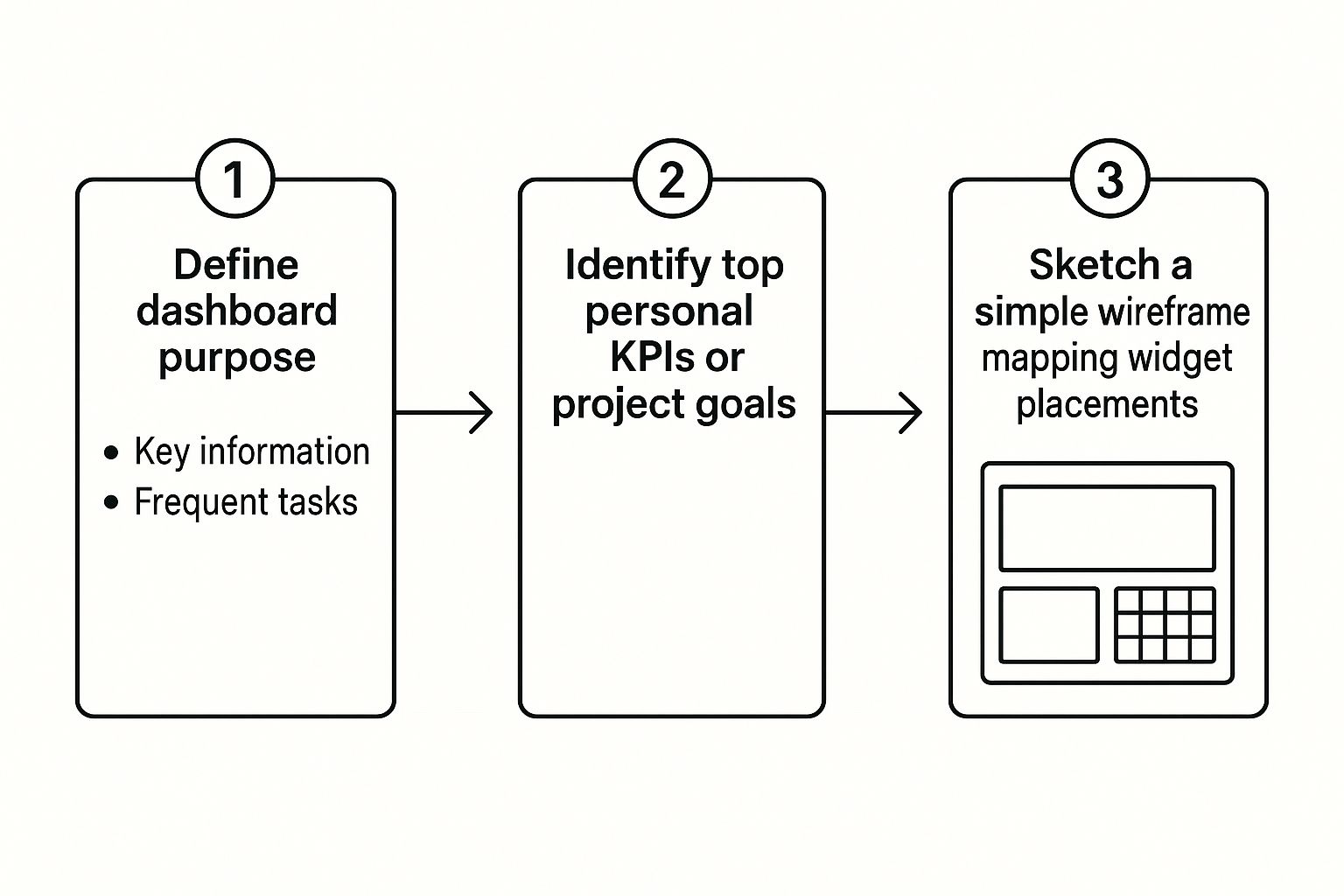
Mapping it out visually like this helps you make smarter choices before you start building. For example, you might realize that putting your daily to-do list right next to your calendar creates a perfect "daily command center." Then, you can place your longer-term project trackers underneath, establishing a clear and intuitive hierarchy.
Key Takeaway: Don't think of planning as an extra step - it's the most important one. A quick sketch built around a clear purpose is the blueprint for a dashboard you'll actually look forward to using every single day.
Alright, you've got your blueprint ready. Now for the really satisfying part: bringing that plan to life and actually building your dashboard. This is where your sketch starts turning into a real, functional workspace inside Notion. We'll be using Widgetly to grab our widgets, since it makes the whole process incredibly simple.
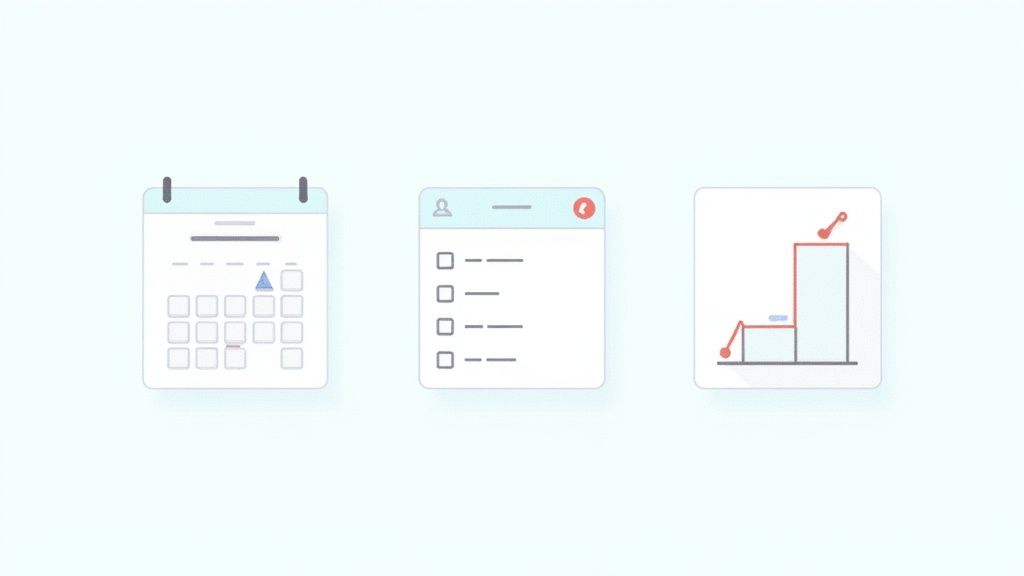
Once you've signed up, you’ll see a whole gallery of widgets. It's easy to get sidetracked here, but stick to your plan. The key is to start with a few core components that will form the backbone of your setup.
Starting with the Essentials
To get a solid foundation, let’s begin with three powerhouse widgets. I almost always start with these because they cover the absolute fundamentals: scheduling, task management, and tracking progress. Get these right, and your dashboard will be useful from day one.
- A Dynamic Calendar: This is a must-have. You need to see your schedule at a glance. I highly recommend finding a calendar widget that syncs with your Google Calendar, so all your existing events are pulled in automatically.
- An Interactive To-Do List: This is more than just a basic checklist. A great task widget lets you categorize your to-dos. Think about being able to visually separate tasks by priority - like "Urgent" vs. "Important" - to immediately know what to work on next.
- A Simple Data Visualizer: This could be a habit tracker or even just a basic progress bar. The goal is to have a visual cue for your goals. Honestly, it's way more motivating to see a bar fill up than to stare at a spreadsheet of numbers.
These first few widgets give you a practical base to expand from later. Once you get a feel for how they work, you can explore more advanced tools. If you need some inspiration, we have a great guide on the best widgets for Notion that shows what else is out there.
Customizing Widgets for a Personal Touch
A dashboard with generic, out-of-the-box widgets just doesn't feel right. Customization is what makes it your space. In Widgetly, after you pick a widget, you'll see a configuration panel. This is where you can dial in the look and feel.
Take your calendar, for example. You can tweak the color scheme to match your Notion theme perfectly, making it look completely seamless. For your to-do list, you could set up custom tags and assign colors - maybe a bright red for "Urgent" and a calm blue for "Deep Work" tasks. This small change can instantly clarify your focus for the day.
The whole point of a dashboard is to give you information quickly. Customizing isn't just about making things look pretty; it's about creating a visual language that helps you understand what's going on in a split second.
The demand for this kind of at-a-glance, personalized data is massive. Back in 2023, the global market for real-time dashboards was valued at around $12 billion, and experts project it will rocket to $32 billion by 2032. This explosive growth just goes to show how essential instant insights have become for making smart decisions on the fly. You can learn more about the real-time dashboard market growth and see how these tools are changing the game. This trend really underscores why building a dashboard that serves up live, interactive information is such a valuable skill to have right now.
Bringing Your Dashboard to Life in Notion
Okay, you've planned your layout and customized your widgets. Now for the fun part: bringing it all together inside Notion. This is where your vision for a personalized command center starts to take shape on the page, and thankfully, it’s a breeze to do.
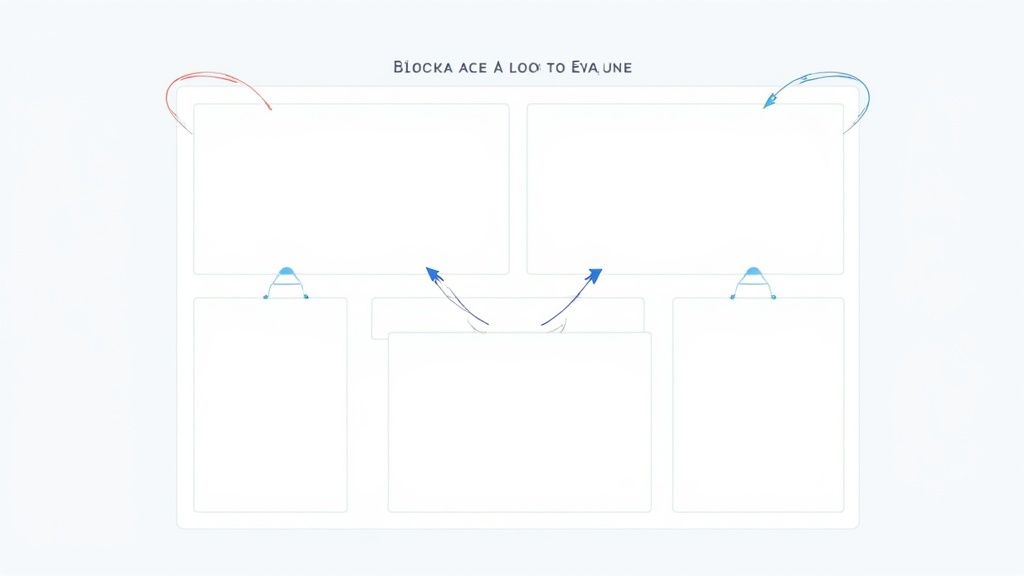
Inside Widgetly, every widget you save comes with a unique embed link. Just grab that link.
Hop over to your Notion dashboard page, type /embed, and paste the link into the block that pops up. Presto! Your widget is now live and functional right where you want it. Repeat this for all the widgets you designed.
Creating a Clean and Organized Layout
A truly great dashboard isn't just a jumble of widgets. The magic lies in how you arrange them. A thoughtful layout directs your focus, prevents overwhelm, and makes the whole experience feel seamless. This is where Notion’s built-in block system really shines.
The easiest way to get started is by creating columns. Simply drag one of your embedded widgets and drop it next to another one. Notion automatically creates a 2-column layout. I personally put my calendar and to-do list side-by-side at the very top of my dashboard - it gives me an immediate, at-a-glance view of my day.
To take it a step further, you can use a few other Notion elements to build a more structured and scannable page. A few of my go-to's are:
- Dividers: The
/dividercommand adds a clean horizontal line. I use these to create visual separation between different zones, like my daily tasks and my long-term project trackers. - Callout Blocks: These are perfect for adding little notes or highlighting a key focus. I have a callout block right above my task list where I write my 3 main priorities for the week.
- Headers: Using H2 or H3 headings to title each section is non-negotiable. It makes finding what you need instant. For even more calendar widget options, check out our post on finding the right Notion calendar download for your needs.
Here's a quick reference table I put together for using Notion's layout elements to build a killer dashboard.
Notion Layout Elements for Dashboard Design
| Notion Element | Best Use Case for Dashboards | Pro Tip |
|---|---|---|
| Columns | Arranging widgets side-by-side (e.g., calendar next to tasks). | Drag and drop blocks next to each other to create up to 5 columns. |
| Dividers | Visually separating different dashboard sections. | Use them to create a clear break between "Daily Focus" and "Weekly Projects." |
| Callout Blocks | Highlighting key goals, reminders, or affirmations. | Change the icon and color to match your dashboard's aesthetic. |
| Toggle Lists | Hiding less frequently used information to reduce clutter. | I use a toggle for my "Monthly Goals" so it doesn't take up space every day. |
| Synced Blocks | Replicating a section across multiple Notion pages. | Perfect for a "Quick Links" or "Navigation" menu you want on every dashboard. |
Using a mix of these elements is what elevates a basic page into a truly functional, personalized space.
Resizing and Grouping for a Perfect Fit
Once you have your widgets and columns in place, you can fine-tune their sizes. Hover your mouse over the vertical line between the columns, and a handle will appear. Just click and drag to adjust the width.
This little trick is great for giving more visual weight to your most important information. For instance, my main project tracker gets about 60% of the screen width, while my simple weather widget only needs a narrow sliver on the side.
A well-structured dashboard isn't just about functionality; it's about creating a calm, focused environment. By thoughtfully arranging your widgets and using visual dividers, you turn a collection of data into a workspace that's genuinely a pleasure to use every single day.
Advanced Dashboard Customizations and Integrations
https://www.youtube.com/embed/uf8QG70OZWg
Once you've got the basics down, it's time to take your dashboard from a simple page to a true command center. This is where the magic really happens - moving beyond individual widgets and starting to plug your dashboard into the other tools you use every single day.
The whole point is to create a single source of truth for your work or life. Imagine seeing your key sales numbers pulled live from a Google Sheet, your latest social media stats updating automatically, or project updates from another app popping up right inside your dashboard. This completely changes the game, making your Notion space a dynamic, living environment instead of a static page.
Creating a Cohesive Design System
A truly great dashboard feels intentional, not like a messy collage of widgets. This is where a simple design system makes all the difference. It's really just about making sure every piece - your widgets, your text, your Notion blocks - looks like it belongs together.
Here are a few things to think about for a unified look:
- Consistent Color Palette: Pick a few core colors and use them everywhere. Maybe they’re your brand colors, or maybe they just make you feel focused. Use them for widget backgrounds, callout blocks, and text highlights to tie everything together.
- Uniform Typography: Notion’s font choices are what they are, but you can still create a visual hierarchy. Use headings, bold text, and italics consistently to guide the eye.
- Standardized Spacing: Don't be afraid of white space. Use dividers and empty blocks to give your elements room to breathe. It makes the entire page easier to scan and prevents that overwhelming, cluttered feeling.
This isn’t just about making things pretty; it’s about reducing mental friction. When your dashboard is visually organized, you find what you need faster. A clean, well-designed space is just more pleasant to come back to every day.
Remember, the best dashboard isn't the one crammed with the most data - it's the one that presents the right data in the clearest way possible. Your design choices are what make that clarity happen.
Integrating with Broader BI Ecosystems
As you build out a more sophisticated dashboard, it helps to understand where it fits into the bigger picture of business intelligence (BI). The global BI software market was valued at a whopping $41.74 billion in 2024 and is expected to soar to $151.26 billion by 2034. That explosive growth is all about one thing: businesses need real-time data to make smart decisions, fast. You can discover more insights about the business intelligence market on Precedence Research.
This trend underscores just how critical connectivity is. As you choose your widgets and tools, think about how they talk to other data systems. Modern BI platforms rely on seamless connections to data lakes, APIs, and cloud storage. Looking for tools that offer these kinds of integrations will ensure your personal dashboard can grow with you and won't become obsolete.
Actionable Integration Examples
Let's get practical. Here are a few real-world ideas for integrations you can set up right now:
- Financial Tracker: Embed a live view of a Google Sheet where you track your monthly budget or business revenue. This puts your most important financial numbers right where you can see them.
- Social Media Monitor: Find a widget that can pull in analytics from your social accounts. You could track follower growth, engagement rates, or see your top-performing posts without ever leaving Notion.
- Client Project Hub: If you're a freelancer, this is a game-changer. Embed client-facing documents, project timelines from a tool like Asana, or even shared Figma files. This turns your dashboard into a one-stop-shop for each client.
Integrations like these bridge the gap between a simple page of information and a powerful, interactive workspace that truly connects all the moving parts of your life.
Common Questions About Notion Dashboards
It’s one thing to plan a dashboard, but it's another thing to build it. You’re bound to hit a few snags or have questions pop up along the way. Getting stuck on a small issue can kill your momentum, so I’ve pulled together some answers to the most common questions I hear.
Think of this as your quick-reference guide for troubleshooting the little things that come up once you start embedding widgets and living in your new dashboard.
Can I Make My Notion Dashboard Mobile-Friendly?
Yes, and you absolutely should. The secret to a good mobile experience is to keep it simple. That beautiful multi-column layout you designed for your desktop? It’s going to stack into one long, confusing column on your phone.
Your best bet is to design for mobile from the get-go with a single-column layout.
- Be ruthless with your priorities. What do you really need to see on the go? Put that right at the top. For me, it’s my daily task list and upcoming calendar events.
- Lean on Notion's native elements. Use H2 and H3 headers and simple dividers to create clean breaks. They’re built to be responsive and always look great on any screen.
- Check it on your phone as you build. Don’t wait until you think you’re done. Pop it open on your phone every few minutes to see how things are stacking up. This lets you tweak widget sizes and spacing before you get too far down the road.
A dashboard that works on your phone isn't just a nice feature; it’s what makes it a true command center you can use anywhere, not just at your desk.
How Do I Keep My Dashboard from Slowing Down Notion?
This is a big one. Nothing will make you abandon a dashboard faster than one that’s slow and laggy. The number one reason Notion pages get sluggish is too many embedded third-party widgets. Every embed is like a mini-website that Notion has to load, and that work adds up quickly.
The fix is to be intentional. Only embed the widgets you truly need for your daily workflow. If a service lets you limit how much data a widget loads by default, definitely use that option. And try to stick with widgets that are simple and don't rely on a ton of heavy scripts.
My best advice is to consolidate. If you need to track a ton of different things, don't cram them all onto one page. Instead, create separate, focused pages (like a "Finances Hub" or "Project Phoenix") and link to them from your main dashboard. This keeps your central hub fast and clean.
What Are Some Common Mistakes to Avoid When Building a Dashboard?
I’ve seen a few mistakes trip people up again and again. If you can sidestep these from the start, you’ll save yourself a lot of frustration.
The biggest mistake is completely skipping the planning phase. Just diving in and adding widgets without a clear goal is the fastest way to build a cluttered, overwhelming dashboard that you'll stop using in a week.
Another common pitfall is information overload. Remember, the goal isn't to see everything, it's to see the right things. A great dashboard gives you crucial information at a glance, not a firehose of every single metric you can think of.
Finally, watch out for inconsistent design. A chaotic mix of clashing colors and styles makes a dashboard feel messy and stressful. Pick a simple color palette and stick to it across all your elements for a dashboard that feels calm and professional.
Can I Connect My Dashboard to Other Tools?
Absolutely. While this guide is all about using Widgetly for its simplicity and great design, Notion's embed block is a powerhouse. You can pull in content from hundreds of other apps you’re probably already using.
For example, you could pull in live data from:
- Google Sheets: Perfect for financial trackers or project data.
- Airtable: Great for displaying dynamic databases.
- Miro: To keep brainstorming boards close at hand.
- Loom: For embedding quick video updates for your team.
The process is always the same. Just find the "share" or "embed" link in the other tool, copy it, and paste it into Notion’s /embed command. This unlocks a ton of potential, letting you build a truly integrated hub that connects all the different pieces of your digital life.