Project timeline template free: Notion guide for projects
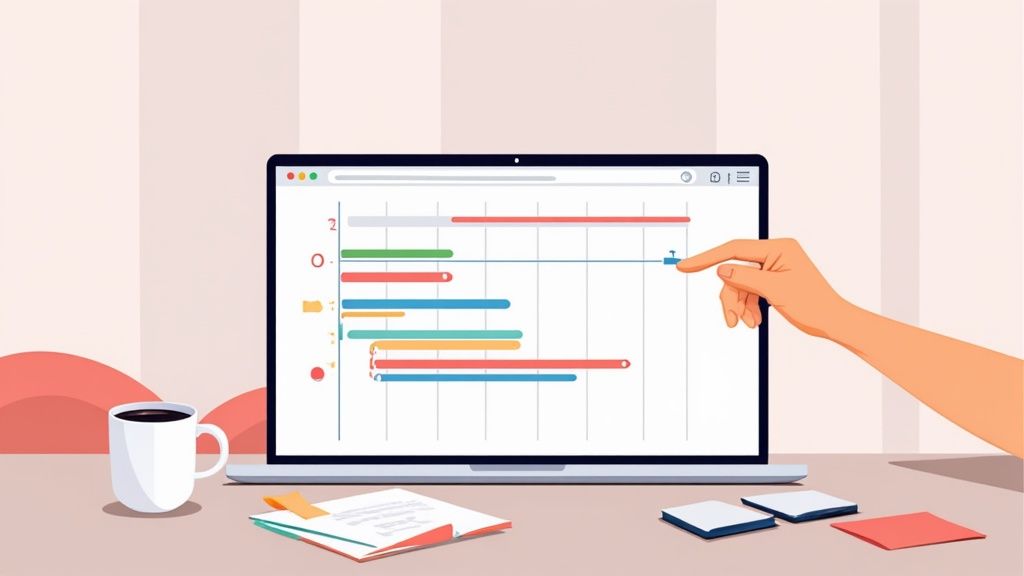
Finding a good free project timeline template can feel like digging for gold, but it's the secret to ditching those old, static spreadsheets for good. The right template turns your project plan from a simple to-do list into a living, breathing roadmap, especially when you pair it with a tool as versatile as Notion.
Why a Notion Timeline Beats Spreadsheets
If you’ve ever felt the pain of missed deadlines and tangled, outdated spreadsheets, you know exactly what I’m talking about. Tools like Excel or Google Sheets are fine for basic data, but they completely fall apart when you need a clear, real-time snapshot of your project's progress. Before you know it, you're lost in a sea of rows and columns that no one on the team ever wants to touch.
A Notion project timeline, however, acts more like an interactive mission control for your work.
Picture this: you're managing a new product launch. Instead of a spreadsheet where task dependencies are just a note buried in a cell, a Notion timeline visually connects "Finalize Packaging" directly to "Begin Manufacturing." If one gets delayed, everyone instantly sees the ripple effect on the entire schedule. No guesswork needed.
Moving Beyond Static Grids
This visual-first approach is a game-changer for cutting down on miscommunication. For a marketing team running a campaign across different channels, the timeline becomes the single source of truth. Everyone can see the key milestones—from creating the content to launching the ads—without needing to sit through endless status update meetings.
This kind of clarity is a lifesaver, whether your team prefers a rigid, structured plan or a more flexible approach. If you're curious about different styles, it's worth understanding the difference between Agile and Waterfall methodologies.
The real magic is shifting from a passive document that just reports on what happened to an active tool that actually guides what happens next. It helps you get ahead of bottlenecks instead of just reacting to them.
Here's a quick comparison of why upgrading to a dynamic Notion template is a game-changer for your project management.
Notion Timeline vs Traditional Spreadsheets
| Feature | Impact on Your Project |
|---|---|
| Visual Timelines | Instantly see task dependencies and project flow, making it easy to spot potential delays. |
| Real-Time Updates | Everyone sees the same up-to-date information, eliminating version control chaos. |
| Integrated Databases | Link tasks to notes, documents, and team members, keeping all context in one place. |
| Custom Views | Switch between timeline, calendar, and list views to see data in the most useful way. |
| Collaboration Tools | Tag teammates, leave comments, and assign tasks directly within the timeline. |
Ultimately, a Notion timeline offers a far more intuitive and collaborative way to manage projects, turning a static document into a dynamic workspace.
This move away from spreadsheets isn't just a hunch; it's a major trend. Over 78% of project managers have switched to digital templates or dedicated software for tracking their timelines. A huge chunk of them—62%—specifically start with free templates for new projects. This is especially true for agile small businesses where every dollar counts. For lean teams and startups, a powerful, free tool isn’t just a perk; it’s fundamental to executing projects smartly and transparently.
Getting Your Notion Workspace Ready
Before you drop in a project timeline template free of charge, it's worth taking a few minutes to lay the groundwork. Don't just start with a blank page. Think of this as building out your project's command center.
First, create a new page in Notion and give it a specific, purposeful name. Something like "Q3 Marketing Campaign Hub" or "Website Redesign HQ" works great. This immediately gives your project a home base.
From there, start fleshing it out. I always recommend adding a few key sections right away: a 'Project Brief' block, a quick 'Team Contacts' list, and a 'Key Resources' area. This is where you can link to important documents, mockups, or inspiration. Suddenly, it's not just a page; it's a true project headquarters.
Building Out Your Project Hub
This shift from juggling scattered spreadsheets to creating a single, unified workspace is exactly what makes modern project management so much more efficient.
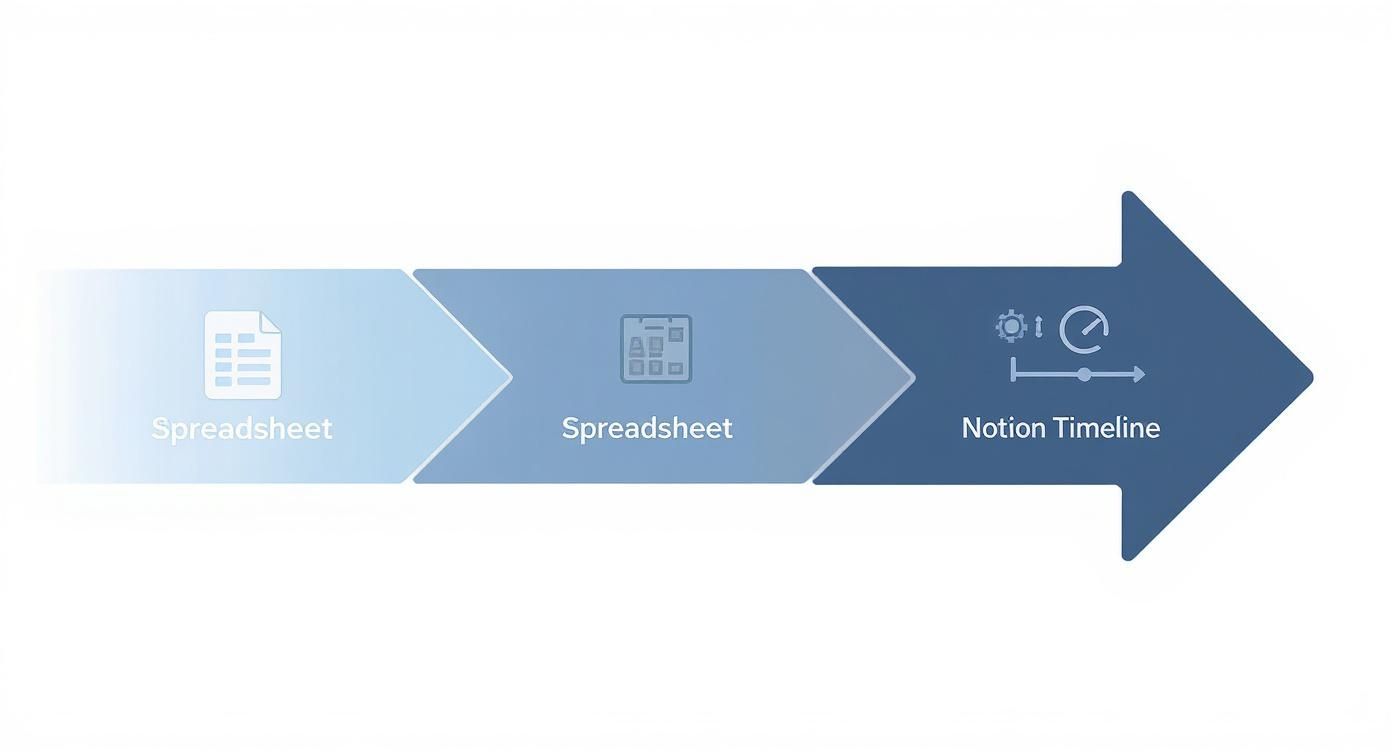
As you can see, the trend is clear: teams are ditching static, isolated files for dynamic platforms like Notion. It creates a single source of truth that everyone can rely on.
Don't forget the small touches that make a big difference. Add a relevant cover image and a custom icon to your page. It sounds minor, but it makes your workspace instantly recognizable in a crowded sidebar and just feels more professional. It’s these little details that boost team adoption and make the space feel like your own.
Think of this prep work as setting the stage. A well-organized workspace makes your timeline more powerful because it connects all the moving parts of your project in one place.
If you’re looking for ideas on how to pull different elements together effectively, our guide on how to build a powerful Notion dashboard has plenty of inspiration.
Taking just 10 minutes to set up this hub ensures that when you add your timeline, it has a home that provides context and value from day one. It's the difference between having a floating chart and a fully integrated project command center.
Finding and Installing Your Free Template
Okay, with your Notion workspace ready to go, it’s time for the fun part: finding a great project timeline template free of charge and bringing it into your setup. You could spend hours googling, but honestly, the best stuff is usually in a few key places.
A solid starting point is always Notion's own template gallery. It's full of officially vetted templates that get the job done. But if you're looking for something with a bit more creative flair or specific functionality, you'll want to check out community hubs. I often find hidden gems on sites like Notion Everything or by searching Gumroad and filtering for free templates.
For this guide, we'll use a popular one I've seen a lot of teams have success with.
Adding the Template to Your Workspace
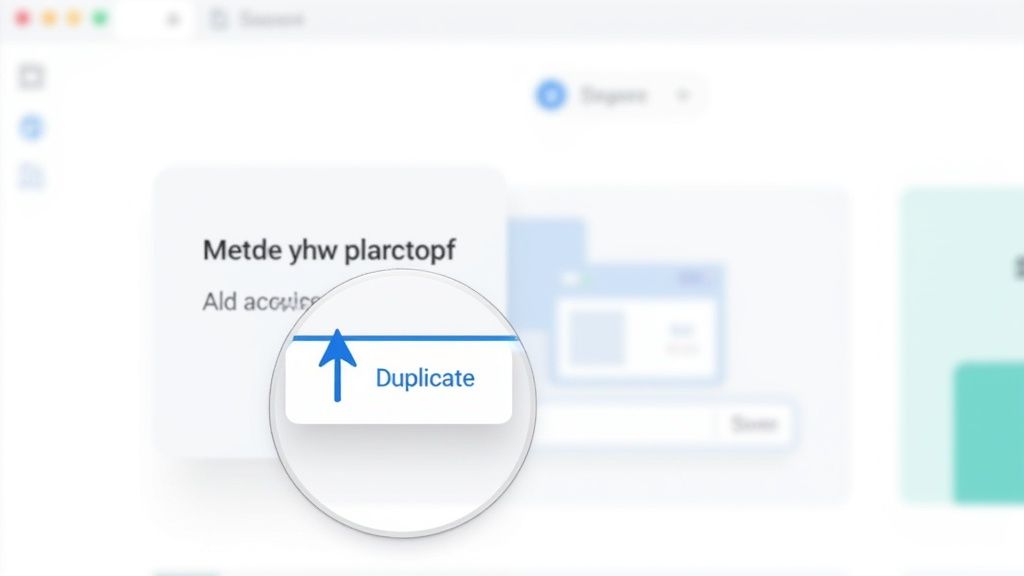
Once you’ve picked out a template, getting it into your Notion is surprisingly easy. Just look for a "Duplicate" button, which is almost always sitting in the top-right corner of the page.
Clicking it will bring up a Notion window asking where you want to send this new template.
- First, just pick your workspace from the dropdown list. Make sure it's the one you've designated for your project hub.
- Notion then gets to work, copying everything—the databases, the pre-configured views, all of it—straight into your workspace. It'll show up under your private pages.
- Once it appears, the last thing to do is simply drag that new template page right into the project hub you set up earlier. That's it!
This whole "duplicate and go" process is a huge part of what makes Notion so powerful. In under a minute, you've imported a complete, ready-to-use system without having to build a single thing from scratch.
The real win here is that you're not starting from zero. You're building on a foundation that thousands of other project managers have already put through its paces. Think of all the setup time you just saved.
Customizing the Timeline for Your Project
So you’ve duplicated the template—great! But let's be honest, a generic template is just a starting point. The real magic happens when you mold that blueprint into something that perfectly fits your project. Now that you have the project timeline template free and sitting in your workspace, it’s time to roll up your sleeves and make it your own.
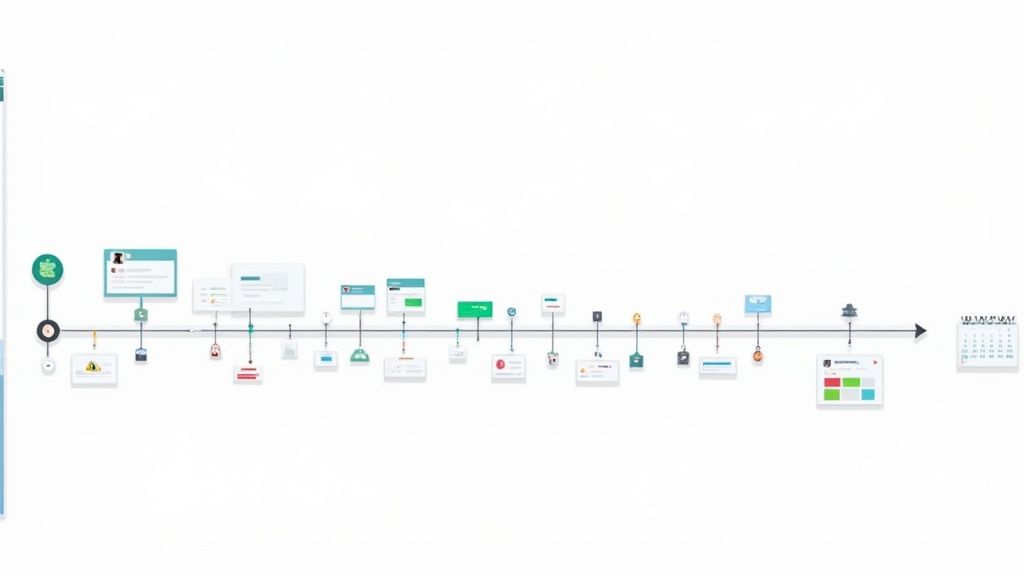
This all starts with the database properties. Think of these as the columns that hold all the key info for each task. Any good template will give you the basics like 'Task Name' and 'Due Date,' but your project has its own unique needs.
For example, if you're managing a big website redesign, just knowing the due date for "homepage mockups" isn't enough. Who’s actually doing it? Is the copy stuck in review, or has it been approved? Customizing these details is what turns a simple to-do list into a dynamic project command center.
Adding Properties That Actually Matter
First things first, click the three dots (...) at the top-right of your database and hit 'Properties'. This is where you can add new fields that are truly critical for your team.
Here are a few I always add:
- Assign Team Members: Use the 'Person' property to assign tasks. This instantly clarifies who owns what, so nothing slips through the cracks.
- Set Priority Levels: I like to add a 'Select' property called 'Priority' with simple tags like 'High,' 'Medium,' and 'Low.' It's a game-changer for helping the team focus on what to tackle first.
- Create Custom Status Tags: Forget the generic "To-Do" or "In Progress." Your workflow is more nuanced than that. Use a 'Select' or 'Status' property to create tags that reflect your real process, like 'Blocked,' 'In Review,' 'Needs Client Approval,' or 'Done.'
These little tweaks make a huge difference in clarity. It's no surprise that 82% of templates downloaded in 2023 included at least one color-coded status tracker. As project management trends evolve away from rigid spreadsheets, features like this have become essential. You can dig into more of these insights over at Hubstaff.
The goal here isn't just to list tasks. It's to communicate context at a glance. When a designer can filter the timeline to see only their 'High' priority tasks for the week, you've leveled up from simple tracking to active project management.
Seeing Your Project From Different Angles
Beyond properties, Notion's real power comes from its different database views. The timeline is fantastic for the big picture, but for day-to-day work, other formats are often more practical.
Just click the '+' button next to your current 'Timeline' view to add new layouts.
- Kanban Board: This is a must-have. Create a board view and group it by your custom 'Status' property. It’s perfect for visualizing your workflow and managing weekly sprints—you can literally drag and drop tasks from 'To Do' to 'Done'.
- Calendar View: A classic for a reason. Add a calendar layout to see all your deadlines on a traditional monthly or weekly grid. I find this incredibly helpful for planning content schedules or flagging important meetings.
The best part? You're not creating separate documents. You're just looking at the same data through different lenses. When you move a card on the Kanban board, the main timeline updates instantly. This seamless integration is what makes a Notion-based project timeline template free from the headaches of old-school tools, giving you a single source of truth for your entire project.
Taking Your Timeline to the Next Level
Alright, you've got the basic template set up and customized. Now it's time for the fun part—turning that simple timeline into a truly powerful project management hub. This is where we move beyond just listing tasks and start connecting the dots to see the bigger picture.
The real magic happens when you use database relations. Think about it: instead of just assigning a task to a team member, what if you could link that task directly to a client's profile or a major company goal for the quarter? By creating a relation, you can instantly see how a tiny delay on one task could ripple out and affect a critical objective. It gives you a strategic overview that a simple to-do list just can't match.
Create Smarter, Filtered Views for Your Team
One of the most effective ways to make your timeline more useful is to stop showing everyone everything all the time. Instead, you can build custom, filtered views that act like personalized dashboards for each person on your team.
For instance, you could create a view called "My Tasks Due This Week." It's easier than you think:
- Filter by Assignee: Just set a filter where the 'Assignee' property is set to 'Me' (which automatically shows tasks for whoever is logged in).
- Filter by Due Date: Then, add a second filter where the 'Due Date' is 'within the next week'.
Boom. Just like that, every team member gets a clean, focused list of their immediate priorities, cutting through the noise of the full project plan. This is a huge win for productivity, as it helps everyone know exactly what to work on next. You can even take these views a step further by checking out some of the best widgets for Notion to add more custom elements.
The goal is to shift from just tracking tasks to strategically managing outcomes. When your data is interconnected, you can anticipate bottlenecks and make informed decisions instead of just reacting to problems.
Automate Your Workflow with Formulas and Dependencies
Don't let the word "formulas" scare you. Even a tiny bit of automation can make a huge difference. You could use a simple formula that automatically flags overdue tasks by checking if the due date is before today's date, maybe turning the task's status red so it's impossible to miss.
Finally, let's talk about dependencies. This is a game-changer for keeping projects on track. Inside Notion's timeline view, you can literally draw a line connecting the end of one task to the beginning of the next. This simple action tells Notion that one task can't start until the other is finished. If the first task gets delayed, the second one automatically shifts—keeping your entire timeline realistic and up-to-date.
Questions People Often Ask About Notion Timelines
When you first grab a free project timeline template, a few questions almost always come up. It's totally normal. Let's get them sorted out so you can jump right in.
Probably the biggest question I hear is about sharing your work with people outside your team.
Can I Show My Timeline to Clients?
Absolutely, and it's dead simple. Notion has a "share to web" feature that creates a public link for any page. You can set the permissions to "view only," which is perfect for clients or other stakeholders.
This gives them a live look at the project's progress without them needing a Notion account. Plus, you don't have to worry about anyone accidentally deleting or changing something. It's a fantastic way to keep everyone in the loop.
Sharing a live timeline is a game-changer for building trust. It gives clients a real-time window into your progress, which means fewer status meetings and update emails for everyone.
Another thing people wonder about is how to handle really big projects. Sometimes, one long timeline just feels overwhelming, and they're right.
The good news is that Notion is built for this. You can create different views of the same project data. For example, you could have:
- A main timeline for the high-level overview.
- A Kanban board to manage this week's tasks.
- A calendar view to highlight major deadlines.
The best part? When you update a task in one view, it instantly updates everywhere else. It keeps everything perfectly in sync, no matter how you look at it.